How to Insert Images into PDFs Online Free
Add a logo, a photo or a screenshot to a page. Choose a JPEG, PNG, GIF or WebP file of up to 5 MB, and Papr places it where you click.
Step by step
1.Open the PDF
Click Open file in the toolbar, or drop the PDF onto the page. Go to the page where the image should appear.
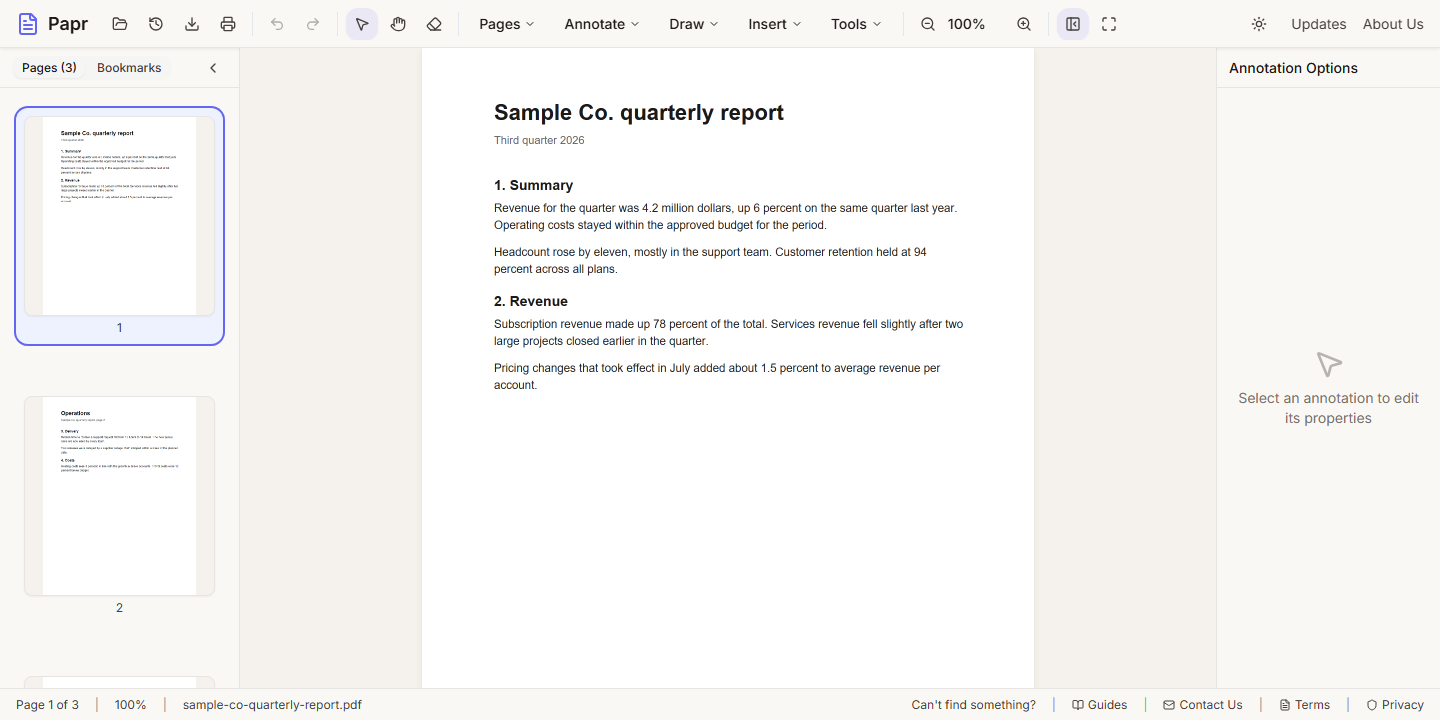
2.Choose Image
Open the Insert menu and click Image. The keyboard shortcut is I.
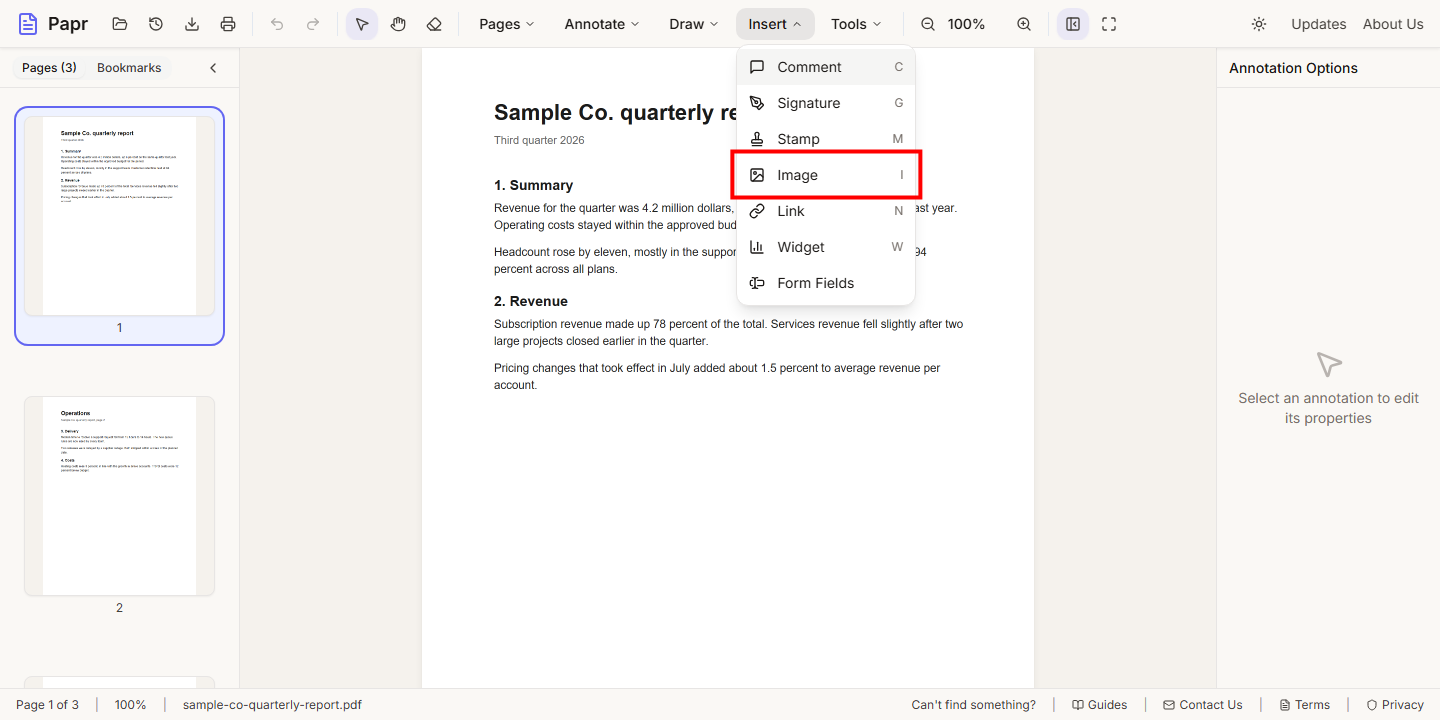
3.Choose the file
The Add Image dialog opens. Click Upload File to choose a file from your device. You can also drag a file into the box, or click Paste to use an image you copied.
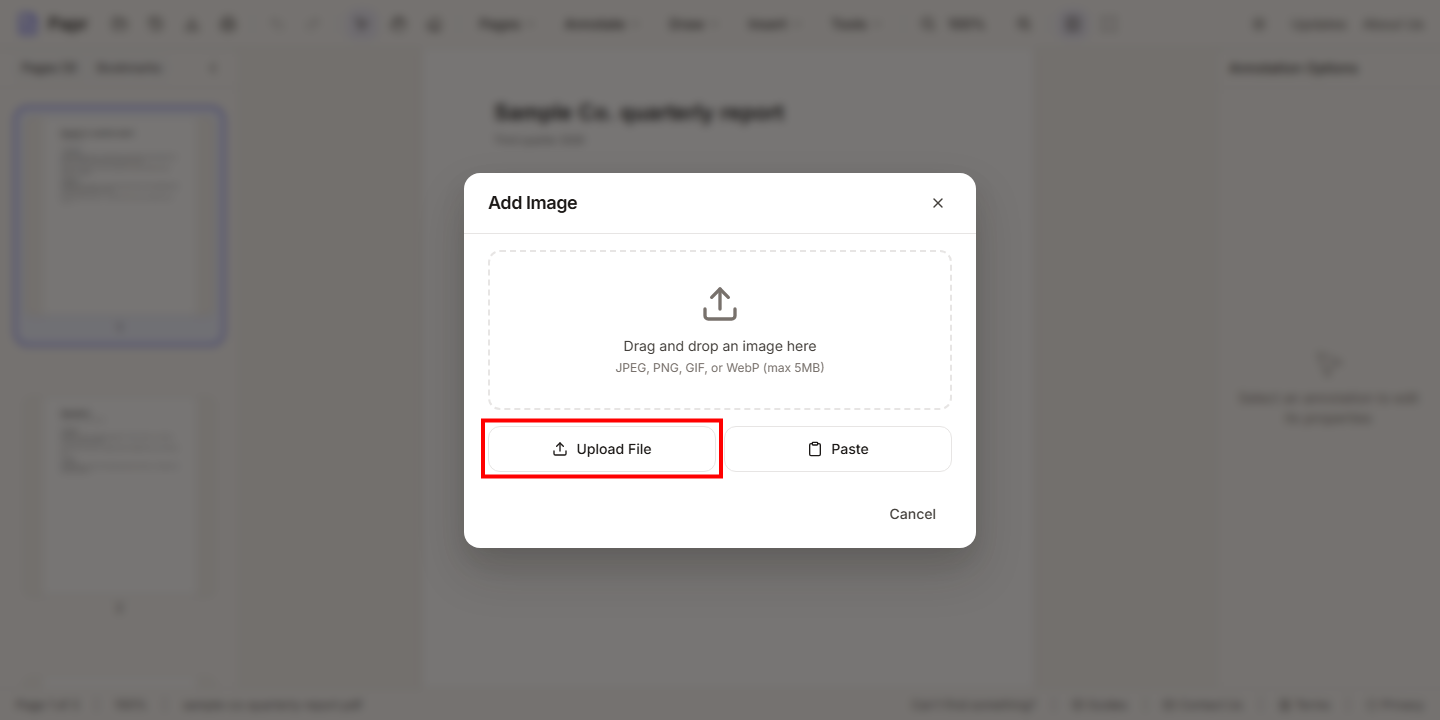
4.Check the image
The dialog shows the picture and its size in pixels. Tick Interactive (click to reveal in exported PDF) if the picture should be hidden behind a badge until a reader clicks it. Then click Add Image.
5.Place and resize it
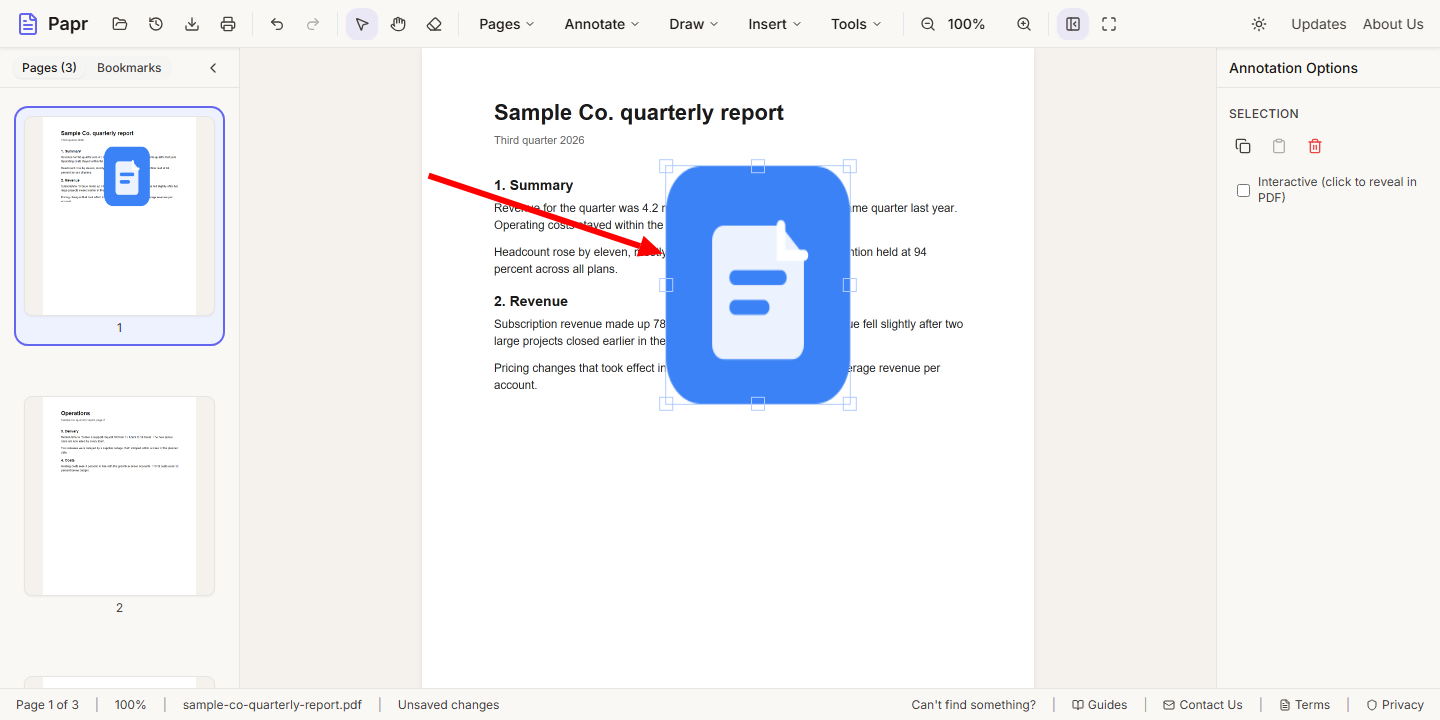
Click the page where the image should go. The image is centered on the click. Drag it to move it, or drag one of its corner handles to resize it.
6.Export the updated PDF
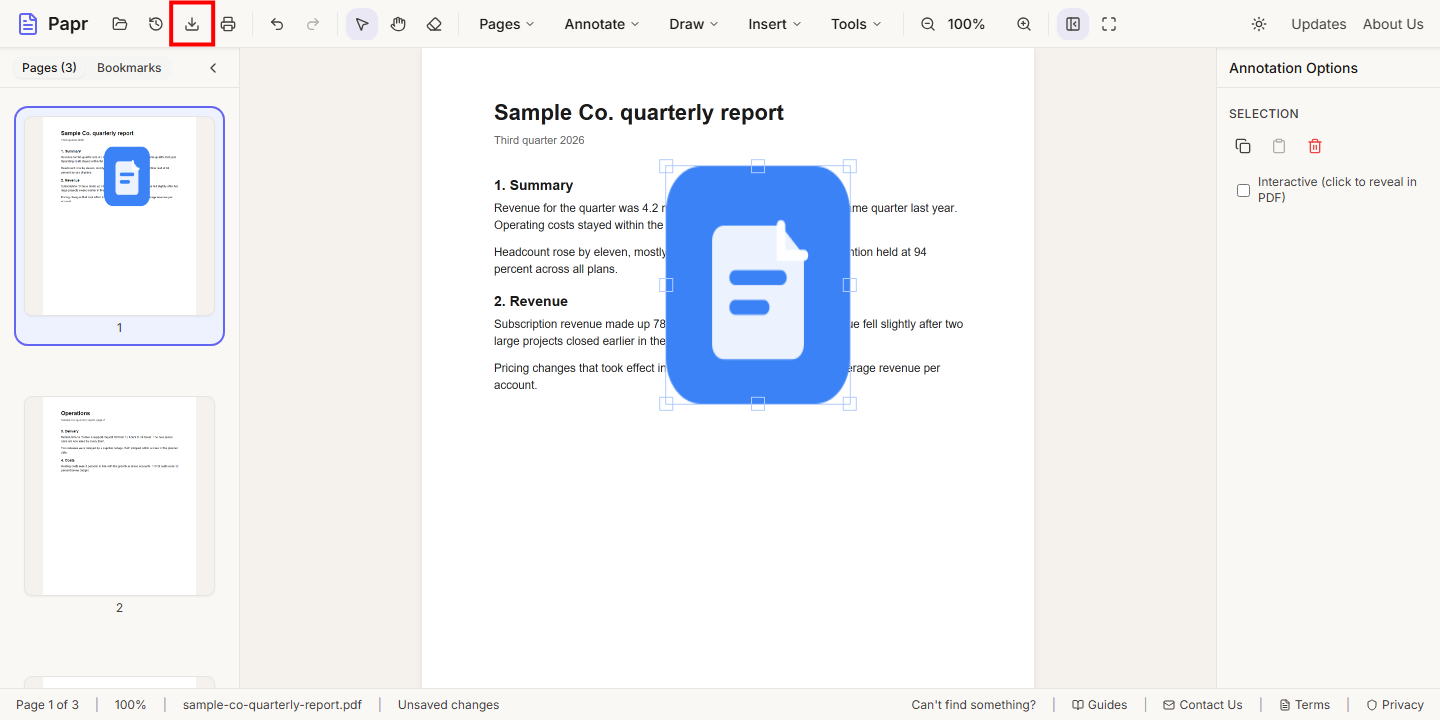
Click Export in the toolbar and save the file. The image is part of the exported PDF.
Try it on your own file
Everything in this guide happens in your browser tab. Your file stays on your device.
Open the PDF editor