How to make a chart image from your data
Make a bar, line, area or pie chart from the numbers in your sheet, and download it as a PNG image to place in a report or a presentation. The chart is drawn in your browser.
Step by step
1.Select the data
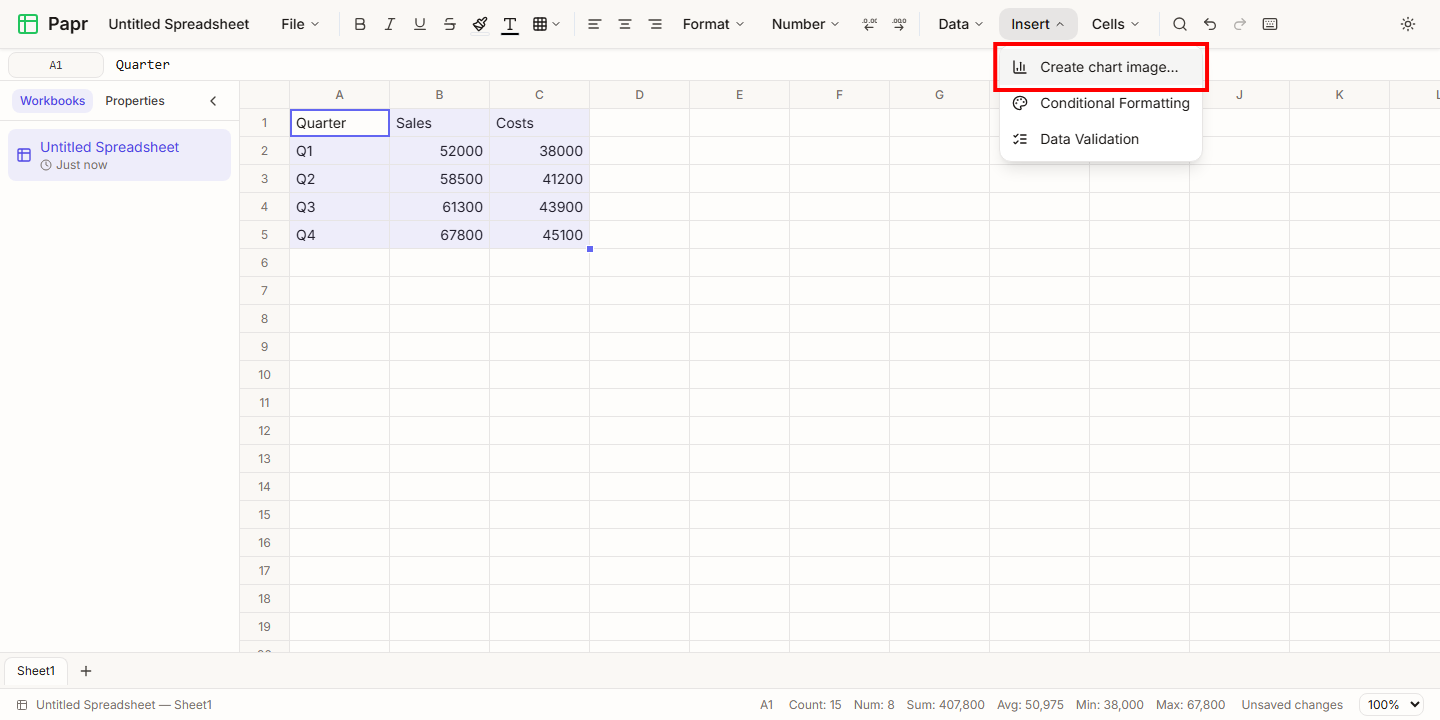
Select the cells to chart. Include the row of column headings and the column of labels, such as the quarter names, along with the numbers. Here the range is A1:C5: the quarters in column A, and the sales and costs in columns B and C. Then open the Insert menu and choose Create chart image….
2.Check the range and the options
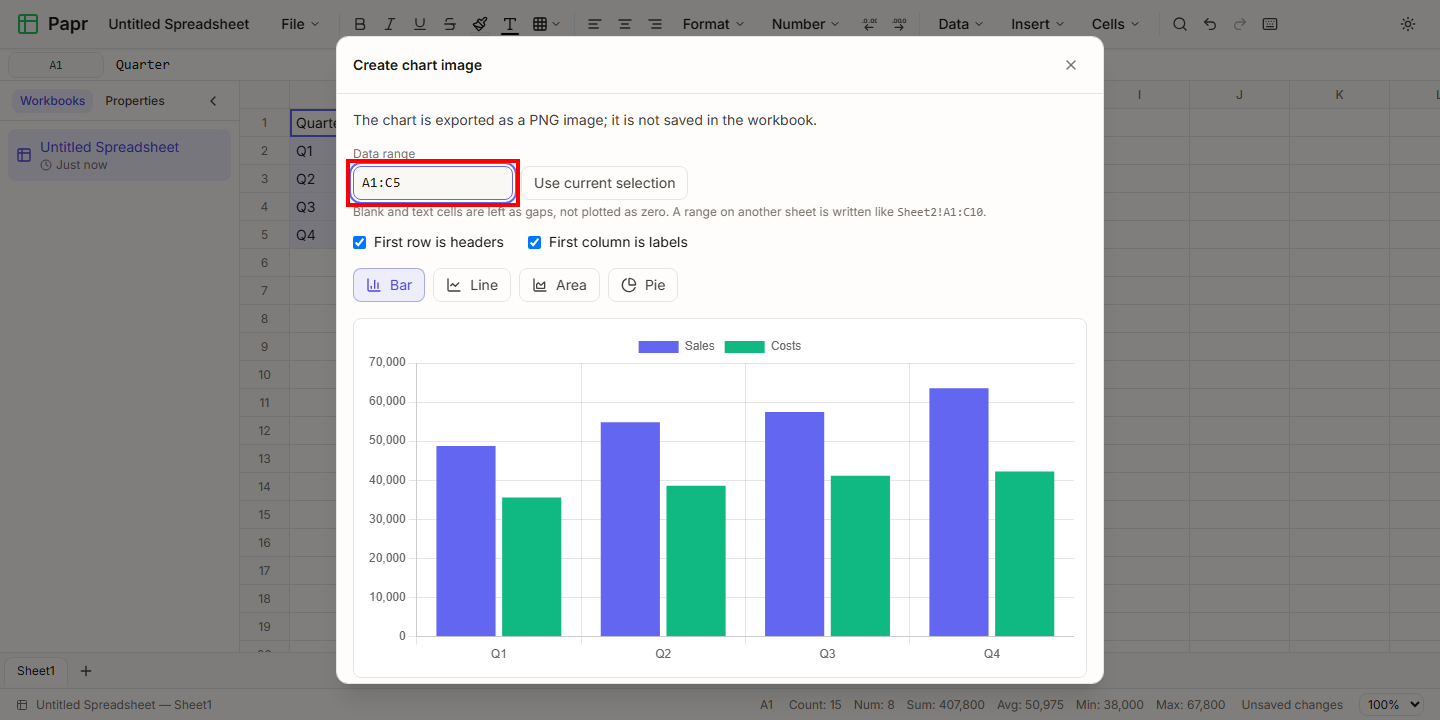
The dialog fills in Data range from your selection. To change it, type another range, such as Sheet2!A1:C10, or click Use current selection to take the selection again. Tick First row is headers if the top row holds the column names, and First column is labels if the first column holds the names of the categories. The preview updates as you change the range.
3.Choose a chart type and download it
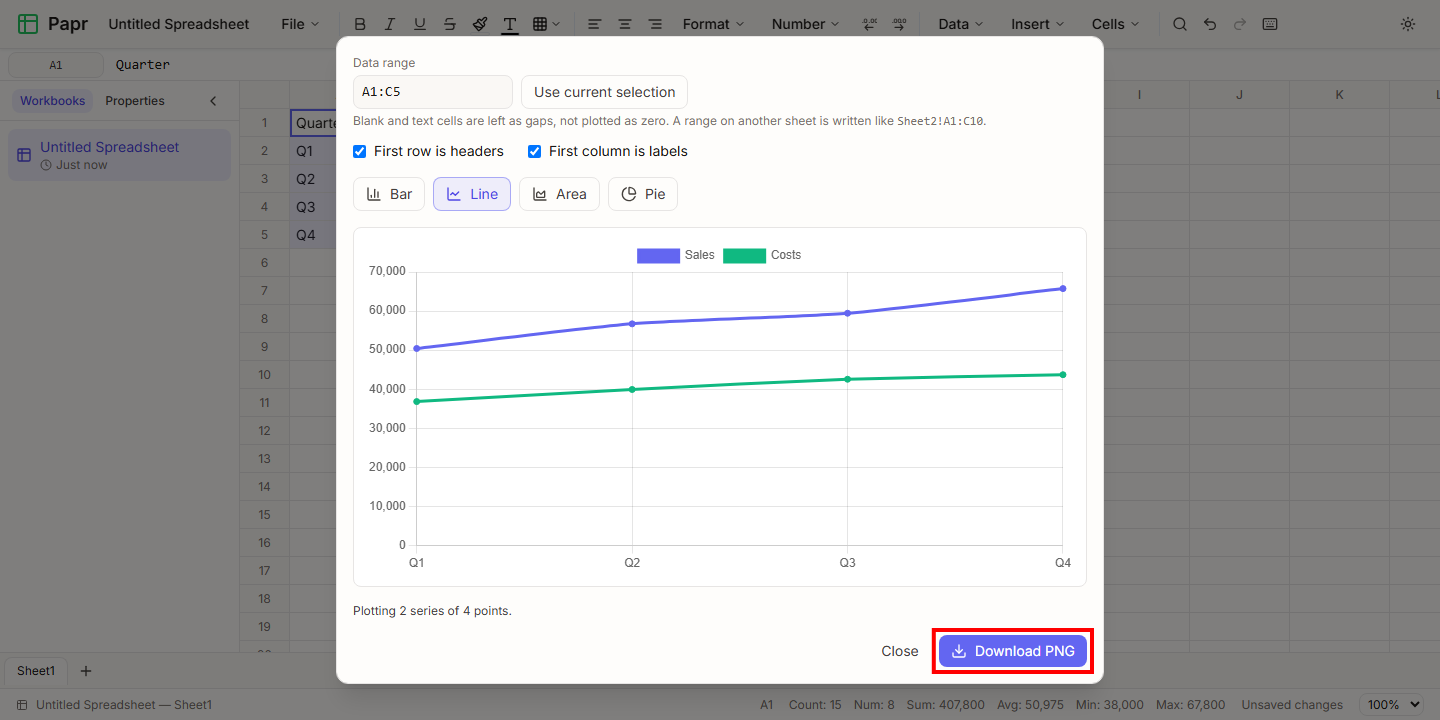
Choose Bar, Line, Area or Pie. Each series of numbers becomes one set of bars, lines or areas, with a legend. A pie chart shows only the first series of numbers. Click Download PNG to save the image to your device.
Good to know
- The chart is an image. It is not saved in the workbook, so a later change to the numbers does not update a PNG you have already downloaded. Make a new image to show the new numbers.
- The chart is not saved in the workbook, so an XLSX export does not include it either. Place the PNG in your document or presentation.
Try it on your own file
Papr Sheets runs in your browser. Your workbook stays on your device.
Open Papr Sheets