How to copy, paste and fill cells in Papr Sheets
Copy a formula down a column, move a block of cells or fill a series in Papr Sheets. This guide shows how to select cells, copy, cut and paste them, use the fill handle and the Fill Down and Fill Right commands, and find the same commands in the right-click menu.
Step by step
1.Select the cells
Click a cell, then drag across the cells you want. Hold Shift and click another cell to select the range from the active cell to that one. Click a column letter to select the whole column, or a row number to select the whole row. The empty box in the top left corner, where the row numbers and column letters meet, selects the whole sheet.
2.Copy, cut and paste
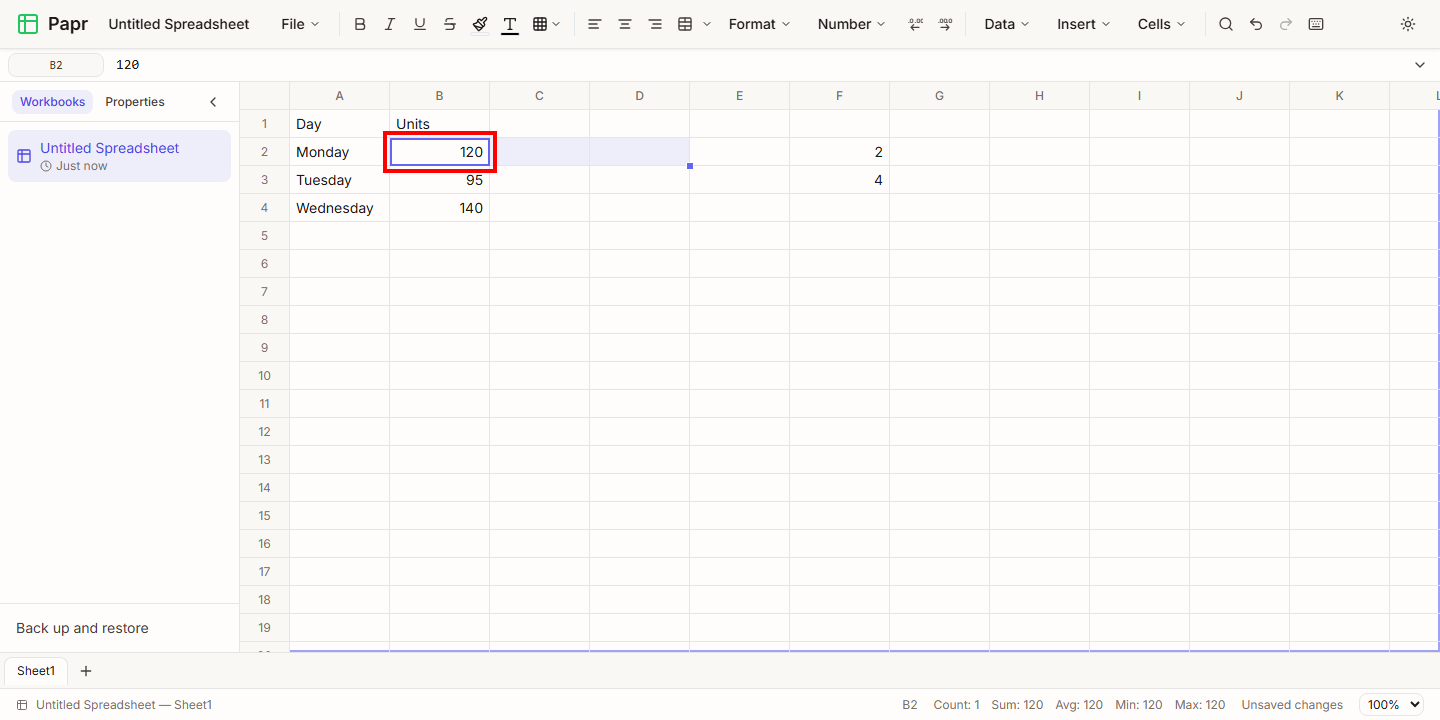
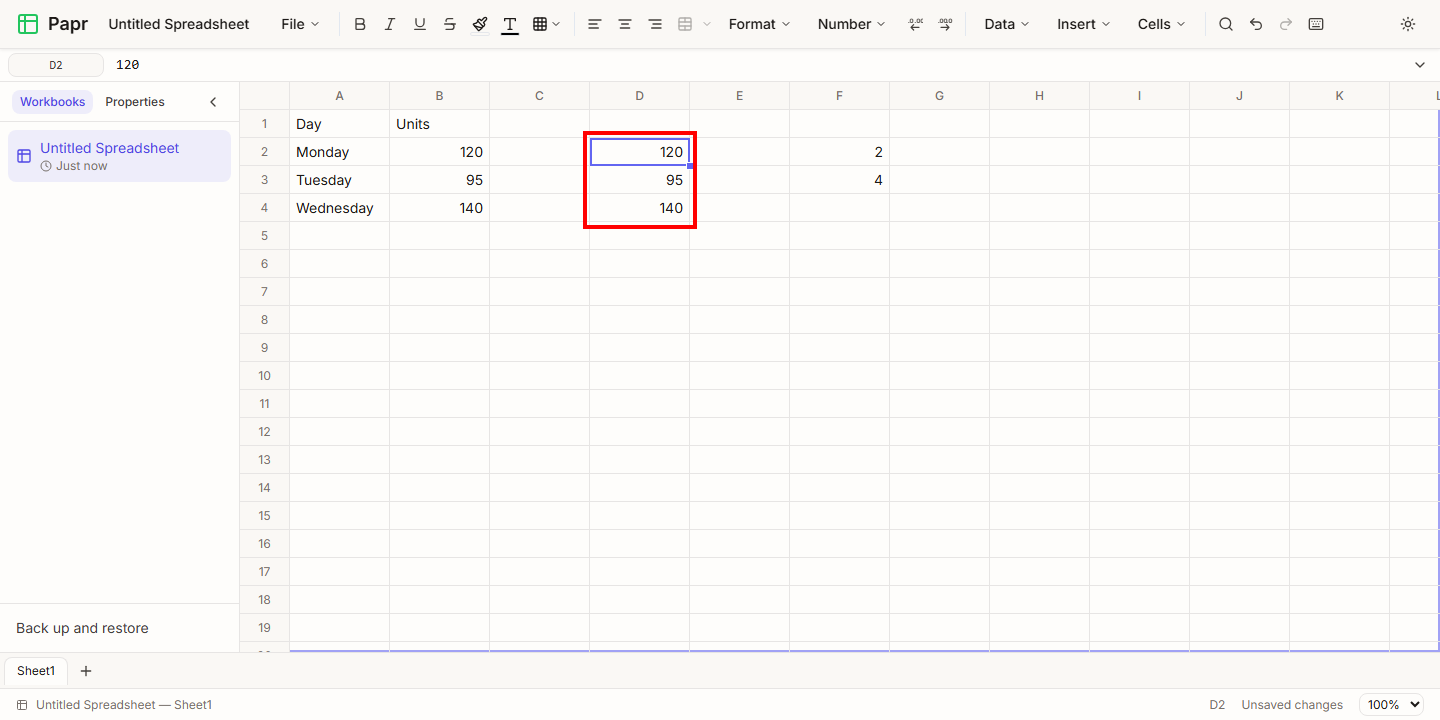
Select the cells and press Ctrl+C to copy them. Click the cell where the copy should start, the active cell, and press Ctrl+V to paste. On a Mac, use ⌘ in place of Ctrl. The copy keeps the formulas and the formats of the cells. Ctrl+X cuts instead: the cells move when you paste them, and their old place is cleared. Press Escape to drop a cut before you paste it.
3.See how references move
A copy moves the relative references in a formula by the distance it is copied. Copy =B2*2 from C2 down to C3 and it becomes =B3*2. A reference with dollar signs, such as $F$1, stays as it is.
A cut works differently. The formula moves with the cells and keeps pointing at the cells it pointed at. Any formula in the workbook that pointed at a cell you moved is changed to point at the cell’s new place, so the totals keep the same numbers.
4.Drag the fill handle
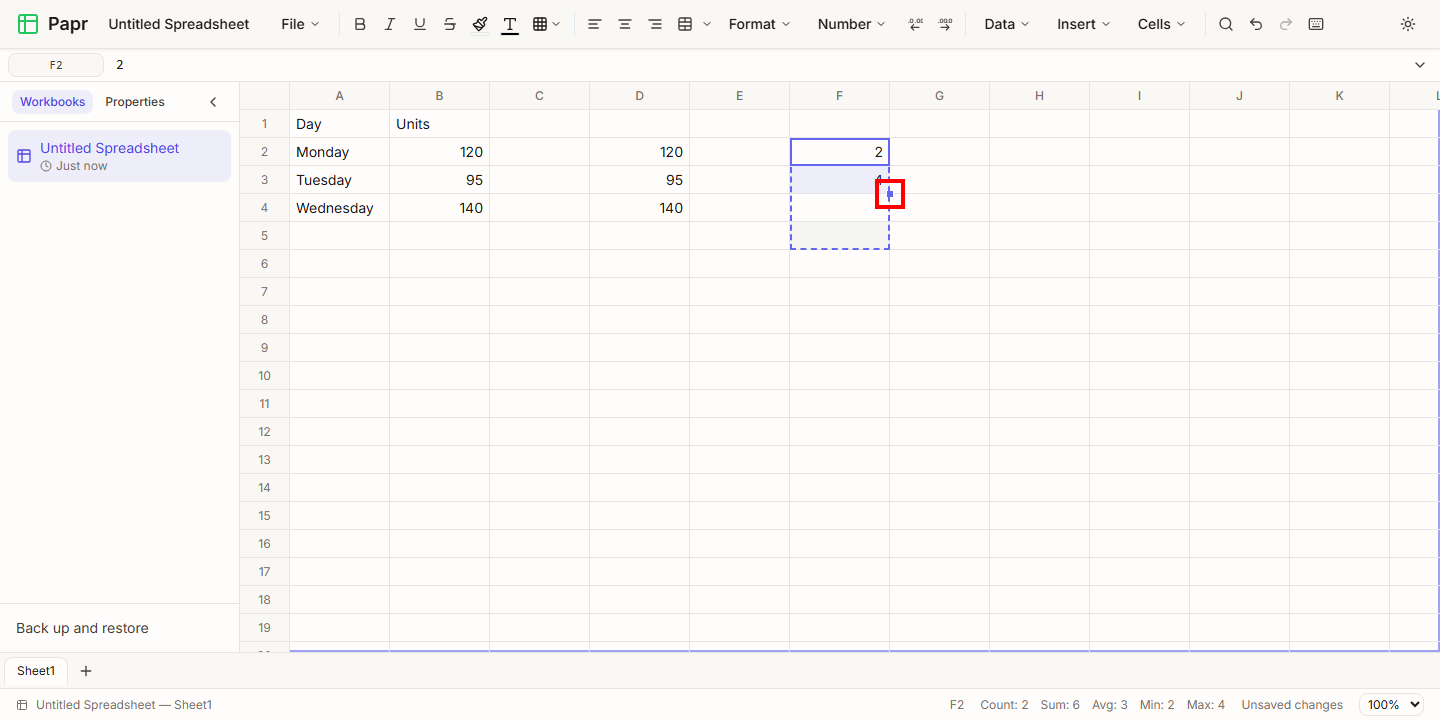
Select the cells whose values should continue, then drag the small square at the bottom right corner of the selection, the fill handle, over the cells to fill. Papr continues each row or column of the selection on its own. Two numbers with a step between them, such as 2 and 4, make a series: 6, 8 and so on. A single number is copied. A date counts up one day at a time, and text that ends in a number, such as Item1, counts up too: Item2, Item3 and so on. A formula is copied with its relative references moved, as a copy does, and each cell keeps the format of the cell it continues.
5.Fill down or fill right
Select the cells, then press Ctrl+D to fill down. The top row of the selection is copied into the rows below it. Press Ctrl+R to fill right: the left column is copied into the columns to its right. With a single cell selected, Ctrl+D copies the cell above it, and Ctrl+R copies the cell to its left. This is a copy, not a series, so a number repeats. Rows and columns that are hidden or left out by a filter are skipped. The Cells menu has the same commands, as Fill Down and Fill Right.
6.Paste values only
Press Ctrl+Shift+V to paste the values of the copied cells and nothing else. A formula pastes the result it shows, not its text, and the cells keep their own formats instead of the copied ones. The right-click menu has the same command, as Paste values only.
7.Use the right-click menu
Right-click a cell, a column letter, a row number or the box in the top left corner. Papr selects what you clicked, as Excel does: a right-click inside the selection keeps the selection, and one outside it selects what was clicked first. The menu then shows the commands for that part of the sheet. Items that cannot be used now are greyed out. Press Shift+F10, or the Menu key, to open the menu from the keyboard, and use the arrow keys to move through it. On a phone, press and hold a cell or a header for about half a second.
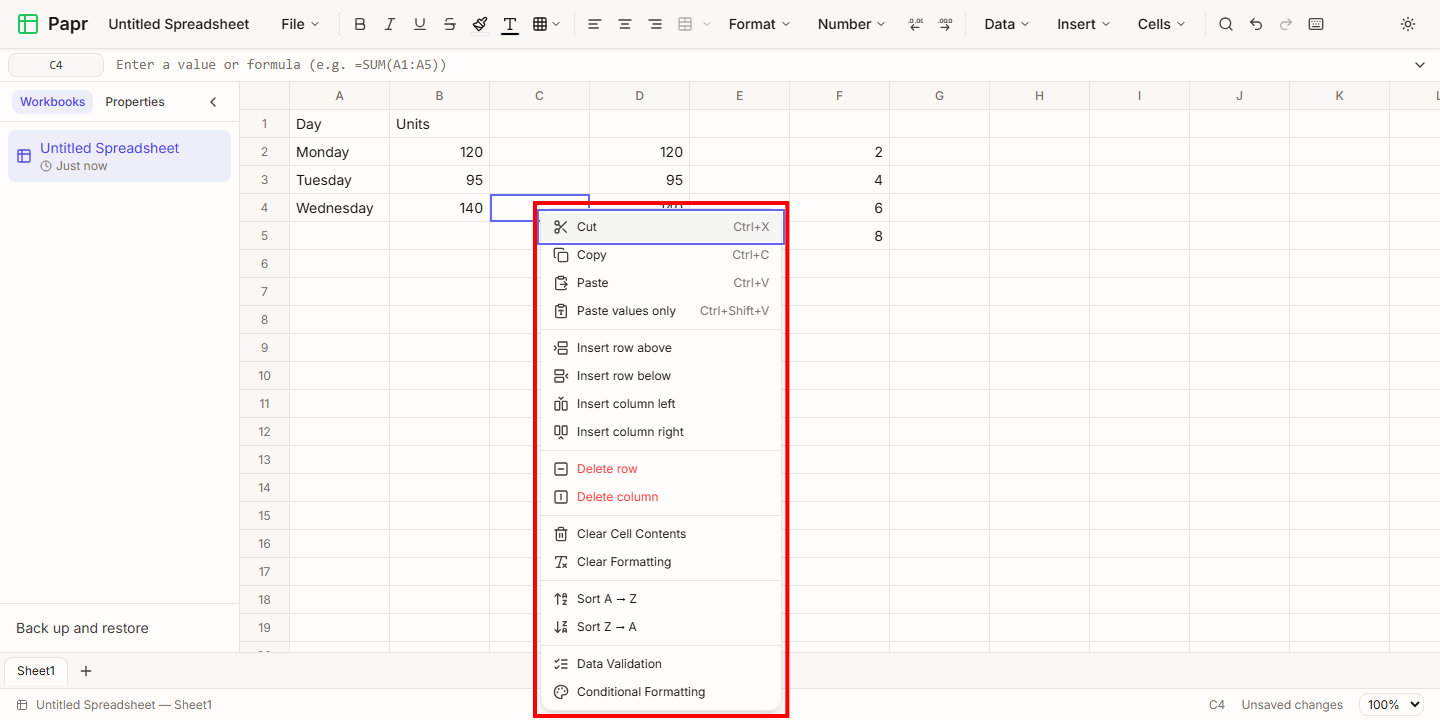
The menu offers these commands for what you clicked:
- A cell: Cut, Copy, Paste and Paste values only; Insert row above, Insert row below, Insert column left and Insert column right; Delete row and Delete column; Clear Cell Contents and Clear Formatting; Merge & Center, Merge Across and Merge Cells when several cells are selected, or Unmerge Cells on a merged cell; Sort A → Z and Sort Z → A; Data Validation and Conditional Formatting.
- A column letter: Insert column left and Insert column right; Delete column; Hide column and, when there are hidden columns, Unhide columns; Clear Cell Contents; Sort A → Z and Sort Z → A.
- A row number: Insert row above and Insert row below; Delete row; Hide row and, when there are hidden rows, Unhide rows; Clear Cell Contents.
8.Work around merged cells
A copy carries the merged cells that lie inside the copied block, and a paste recreates them. A paste that would cut a merged cell in two is refused, and so is a fill that would write into one. Fill Down and Fill Right do nothing to a selection that holds a merged cell. In each case Papr shows "We can't do that to a merged cell." and changes nothing. Unmerge the cells first, then paste or fill.
Good to know
- A copied block pasted onto a selection whose width and height are whole multiples of the block repeats across the selection, so one copied cell fills a range. A cut block, or a copied block that does not fit the selection, is pasted once, at the active cell.
- A table copied from a web page or another spreadsheet pastes as a block of cells: each tab starts a new cell and each line break starts a new row.
- Ctrl+Z undoes a paste, a fill or a Fill Down as one step.
Try it on your own file
Papr Sheets runs in your browser. Your workbooks stay on your device.
Open Papr Sheets