How to Annotate and Markup PDFs Online Free
Need to review a document, leave feedback, or mark up a PDF with notes? Whether you're a teacher grading papers, a lawyer reviewing contracts, or simply organizing your reading, Papr offers a full suite of annotation tools — all working directly in your browser with no uploads required.
Why Annotate PDFs with Papr?
PDF annotation is essential for document review, collaboration, and personal note-taking. Papr provides professional-grade annotation tools without requiring expensive software or cloud uploads that compromise your privacy.
- Complete Toolkit: Highlight, underline, strikethrough, freehand drawing, shapes, text boxes, and more
- 100% Private: Your documents never leave your device
- Color Options: Customize annotation colors to organize your feedback
- Easy Corrections: Use the eraser tool to remove any mistakes
Available Annotation Tools
Papr includes a comprehensive set of annotation tools:
- Highlight: Mark important text with translucent color overlays
- Underline: Emphasize key phrases and sentences
- Strikethrough: Mark text for deletion or indicate edits
- Text: Add text annotations anywhere on the page
- Comment: Drop sticky-note style feedback for review threads and follow-up actions. See the Comments guide
- Pen: Freehand drawing for signature-style marks, circles, or custom marks
- Shapes: Add rectangles, circles, arrows, and lines
- Eraser: Remove any annotation you've added
- Widget: Embed interactive data visualizations — charts, tables, KPI cards, and more. See the Data Widgets guide
Step-by-Step: Annotating PDFs in Papr
Step 1: Open Your PDF
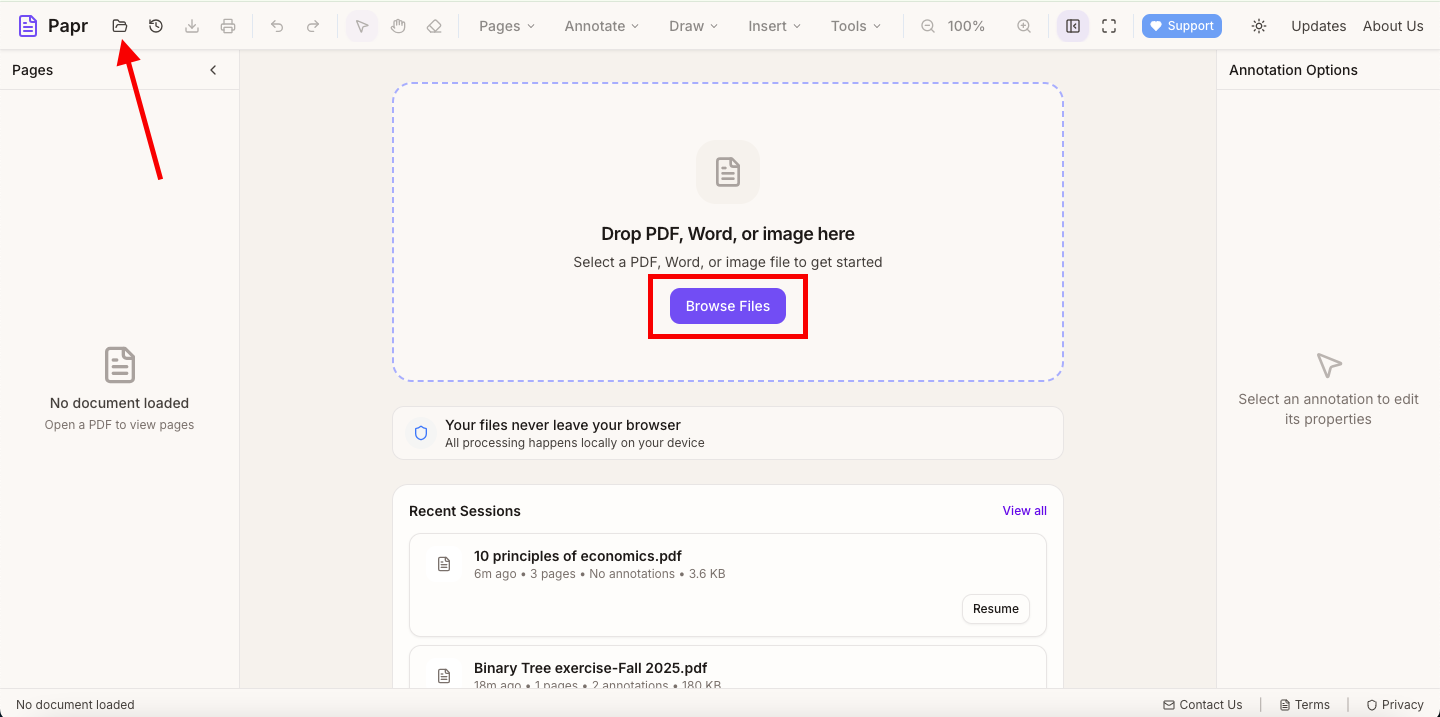
Go to the Papr editor and click the "Open file" button or drag and drop your PDF onto the page. Your document will load and be ready for annotation.
Step 2: Choose Your Annotation Tool
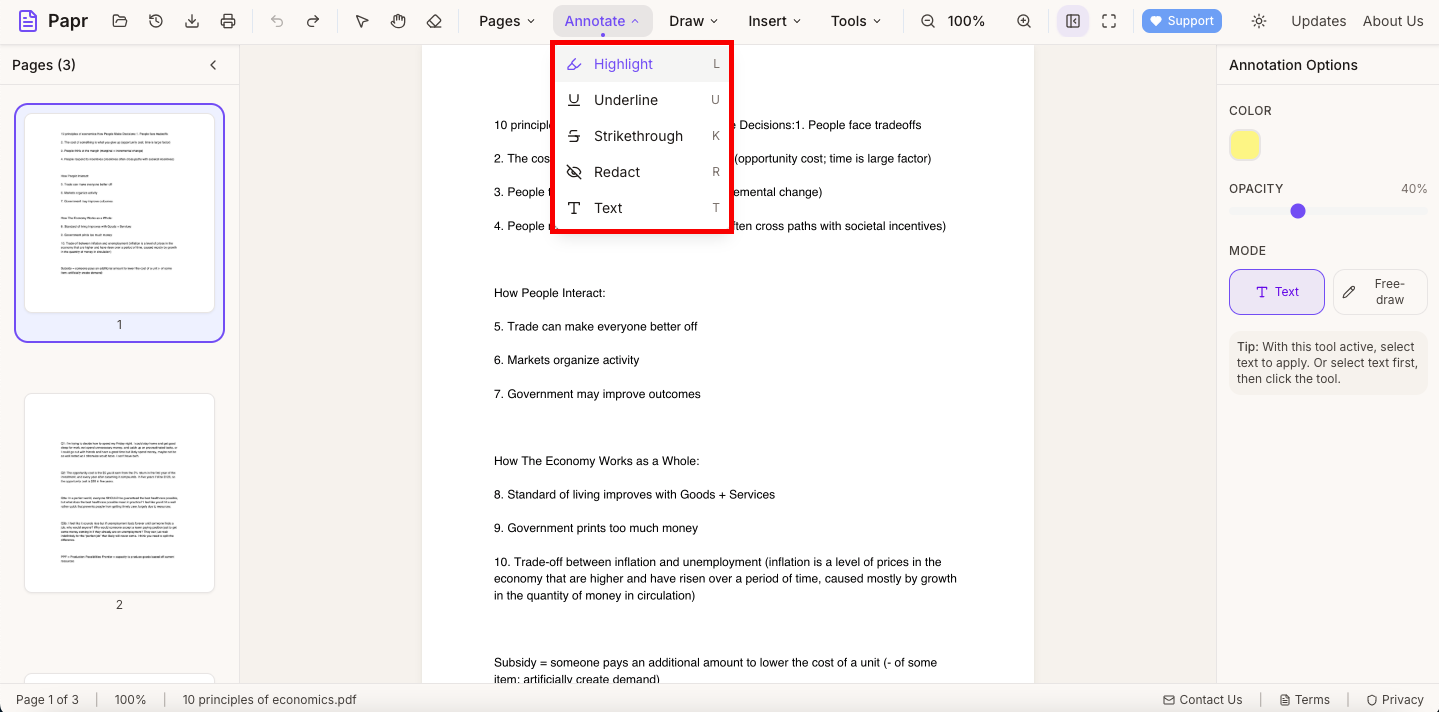
Use the Annotate dropdown for text markup tools (Highlight, Underline,Strikethrough, Text), the Insert dropdown for Comment, or the Draw dropdown for Pen and Shape tools. Select the tool you need and optionally choose a color.
Step 3: Mark Up Your Document
Click and drag on the document to apply your annotations. For text markup tools, select the text you want to highlight or underline. For shapes and drawing, click and drag to create your marks. You can switch between tools as needed.
Step 4: Use the Eraser for Corrections
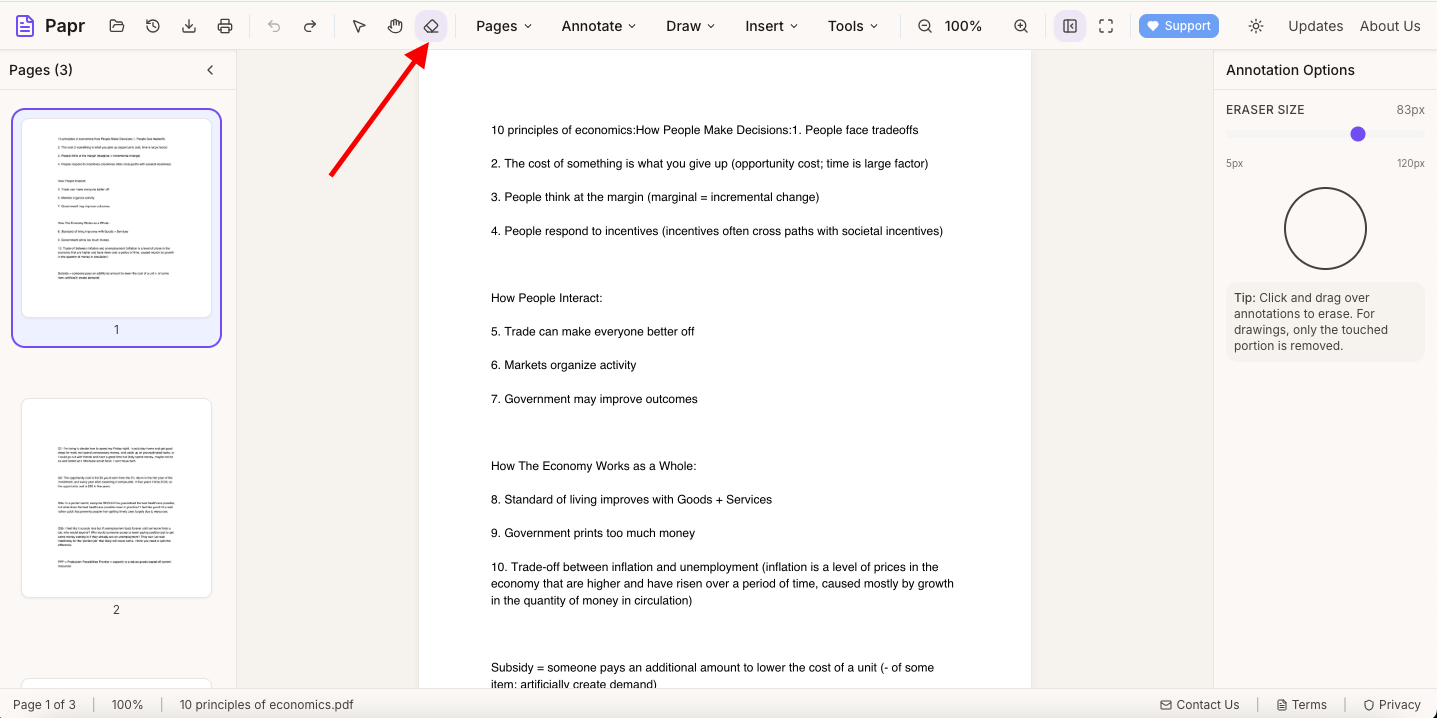
Made a mistake? Select the Eraser tool (eraser icon) in the top toolbar and click on any annotation to remove it. You can also select annotations and press Delete to remove them.
Step 5: Export Your Annotated PDF
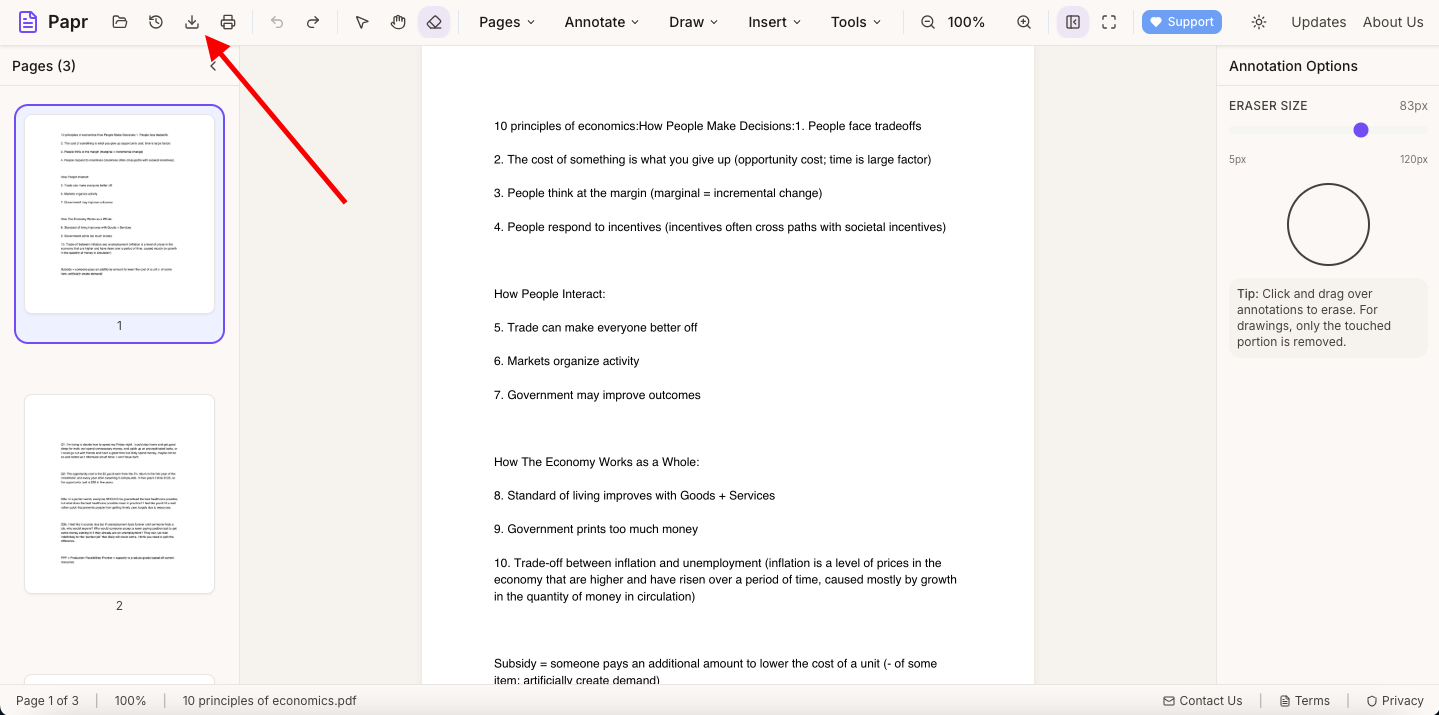
When you're finished annotating, click the Export button to save your annotated PDF. All your annotations will be embedded in the document and visible in any PDF reader.
Tips for Effective Annotation
- Use colors strategically: Assign different colors for different types of feedback (e.g., yellow for questions, green for approvals, red for issues)
- Combine tools: Use highlights with text annotations to explain why something is important
- Use arrows: Point to specific areas that need attention with arrow shapes
- Keep it readable: Don't over-annotate — focus on the most important points to maintain clarity
Common Use Cases
PDF annotation is useful in many scenarios:
- Reviewing and providing feedback on documents
- Grading papers and assignments
- Marking up contracts and legal documents
- Taking notes while reading research papers or ebooks
- Collaborative document editing and review
- Highlighting important sections in manuals or guides
Ready to Annotate?
Try annotating PDFs now with Papr. It's free and your files stay private.
Open Papr Editor