How to reorder, delete and duplicate PDF pages
The Organize Pages dialog shows every page of your PDF as a thumbnail. Drag pages into a new order, delete the ones you do not need, or duplicate a page, and then apply the changes to the file.
Step by step
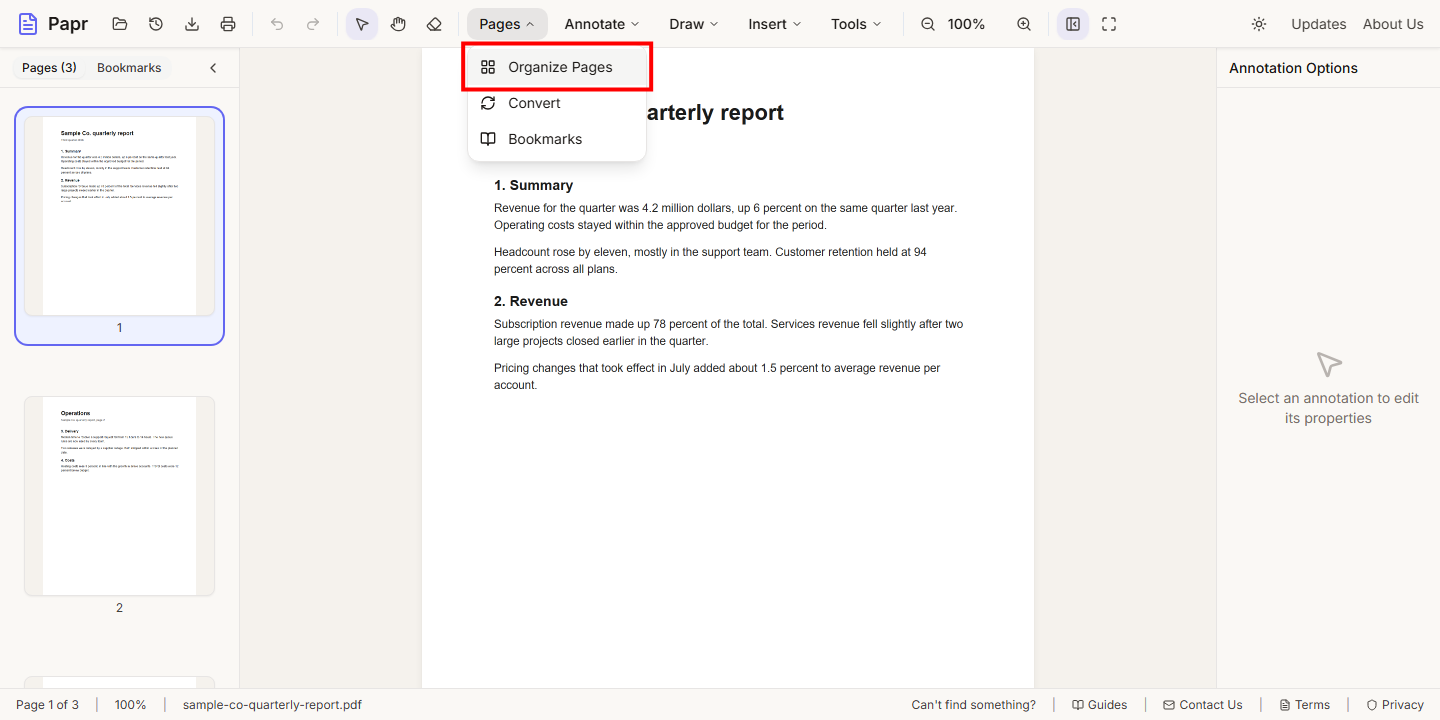
1.Open Organize Pages
Open the PDF, then open the Pages menu in the toolbar and choose Organize Pages. You can also find it with the command palette (Ctrl+K).
2.Look at the pages
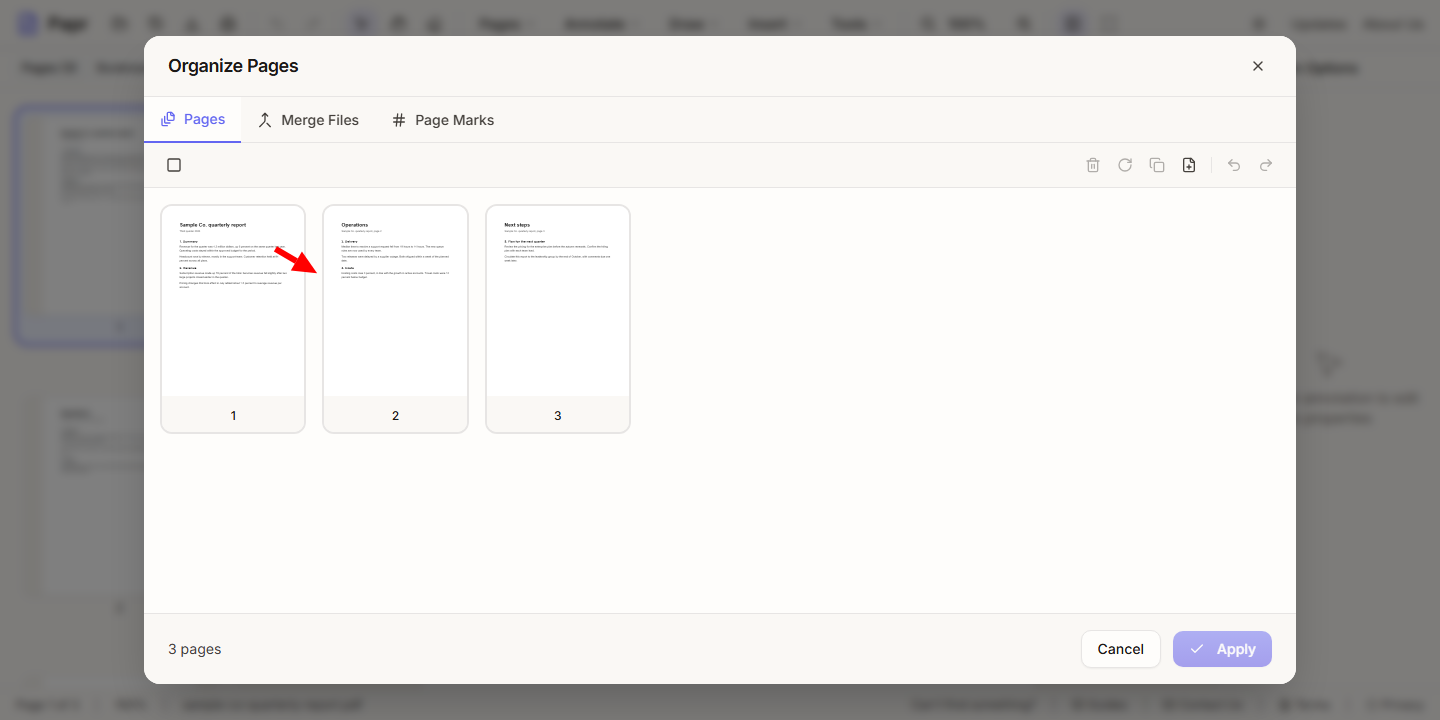
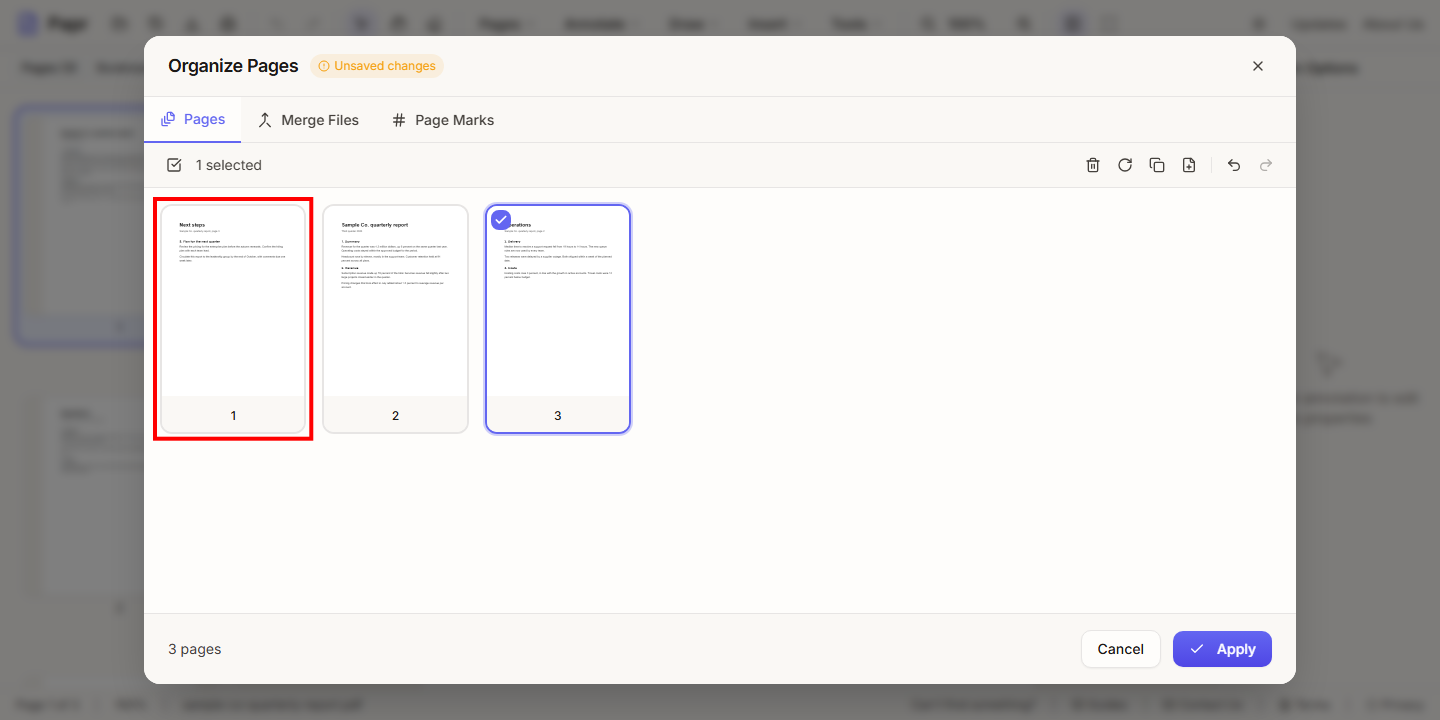
The dialog opens on the Pages tab. Each page is a thumbnail, numbered in the order it will have in the file. The count at the bottom shows how many pages there are.
3.Select pages
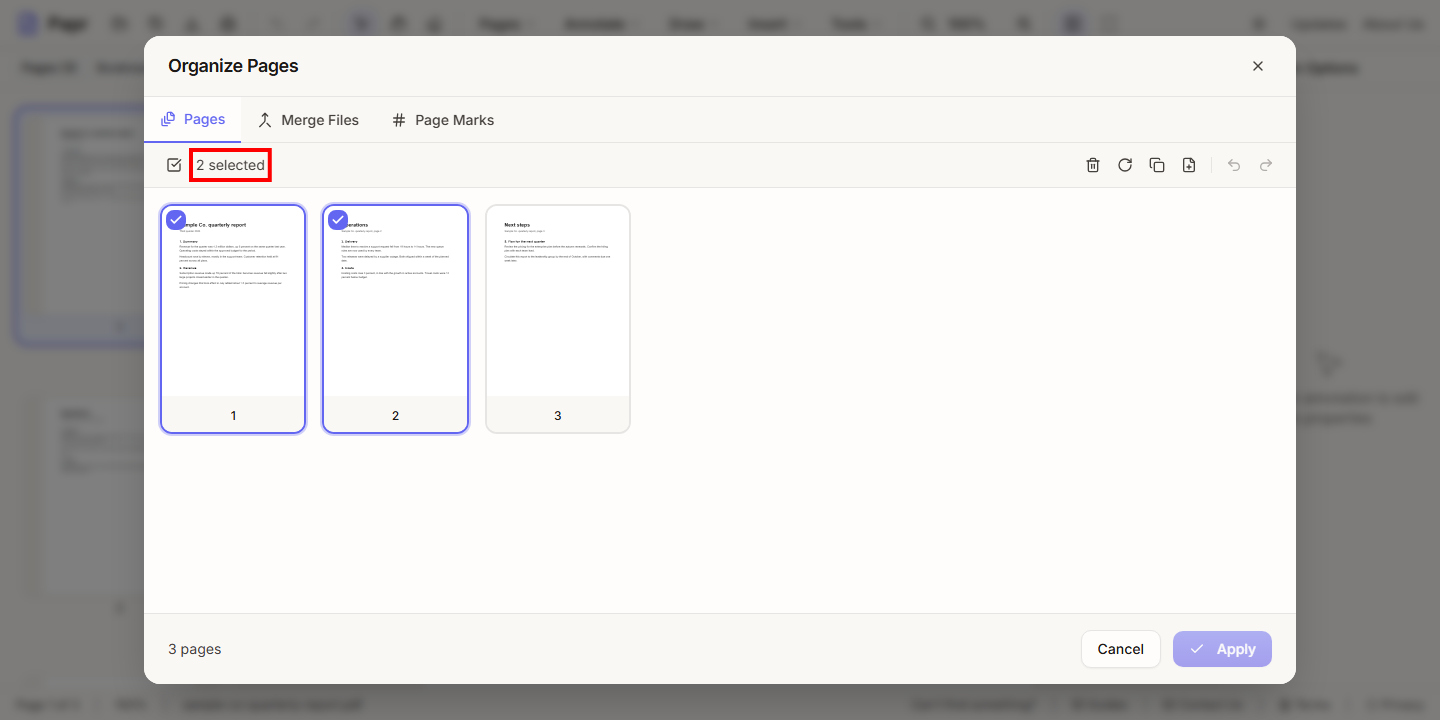
Click a thumbnail to select it, and click it again to clear it. To select a run of pages, click the first one, then hold Shift and click the last one. The count above the thumbnails shows how many pages are selected. The square at the top left selects every page, or clears the selection when some are selected.
4.Delete, rotate, duplicate or add a blank page
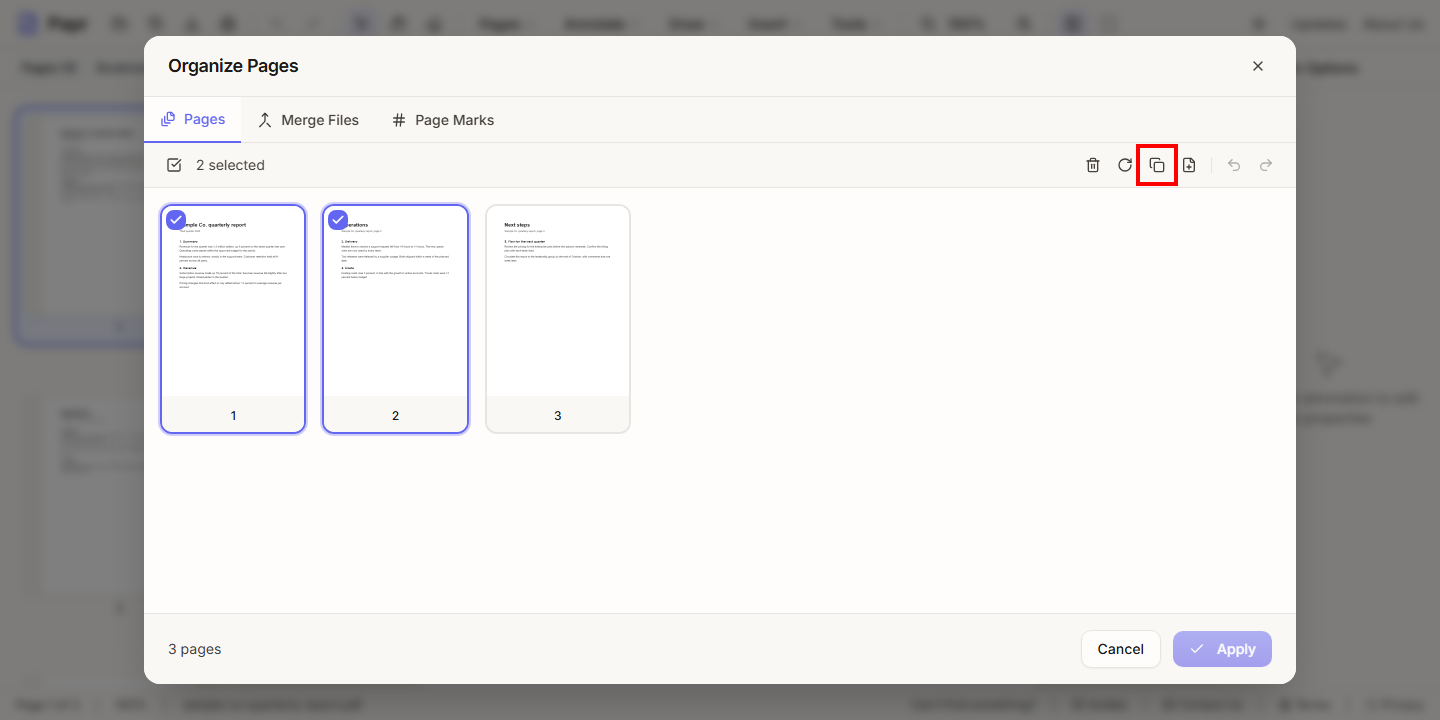
The buttons above the thumbnails act on the selected pages. Delete selected pages removes them (the Delete key does the same). Rotate selected pages 90 degrees turns them. The Duplicate selected pages button puts a copy of each one after it. Insert blank page adds an empty page after the last selected page. Undo and Redo step back and forward through your changes.
5.Drag pages into a new order
Press on a thumbnail and drag it to the place you want, then let go. The other pages move to make room. The pages keep their content, and Unsaved changes appears at the top of the dialog until you apply the changes.
6.Apply the changes
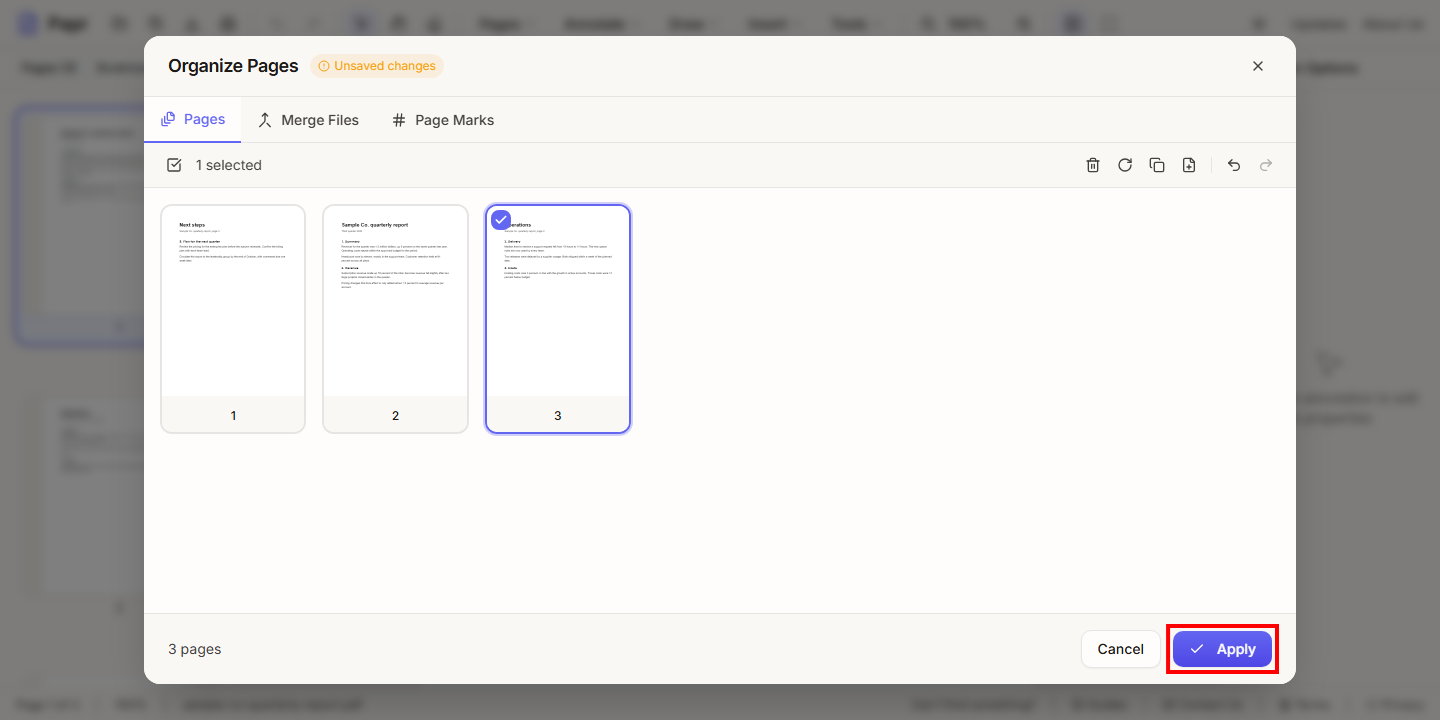
Click Apply to change the PDF in the editor. Cancel closes the dialog without changing the file. If you close the dialog with unsaved changes, Papr asks you to confirm before it discards them.
The other tabs
- Merge Files adds the pages of other PDFs to this one, in the order you choose. See the merge guide.
- Page Marks adds numbers, headers, footers and watermarks to pages. See the Bates numbering and watermark guides.
Try it on your own file
Everything in this guide happens in your browser tab. Your file stays on your device.
Open the PDF editor