Using Papr on your phone
Papr runs in a phone’s browser, and it is laid out for a narrow screen. This guide shows the PDF editor on a phone, and the phone toolbars of Papr Docs and Papr Sheets, with their More menus. Your files stay on the phone.
The PDF editor
1.Open a PDF
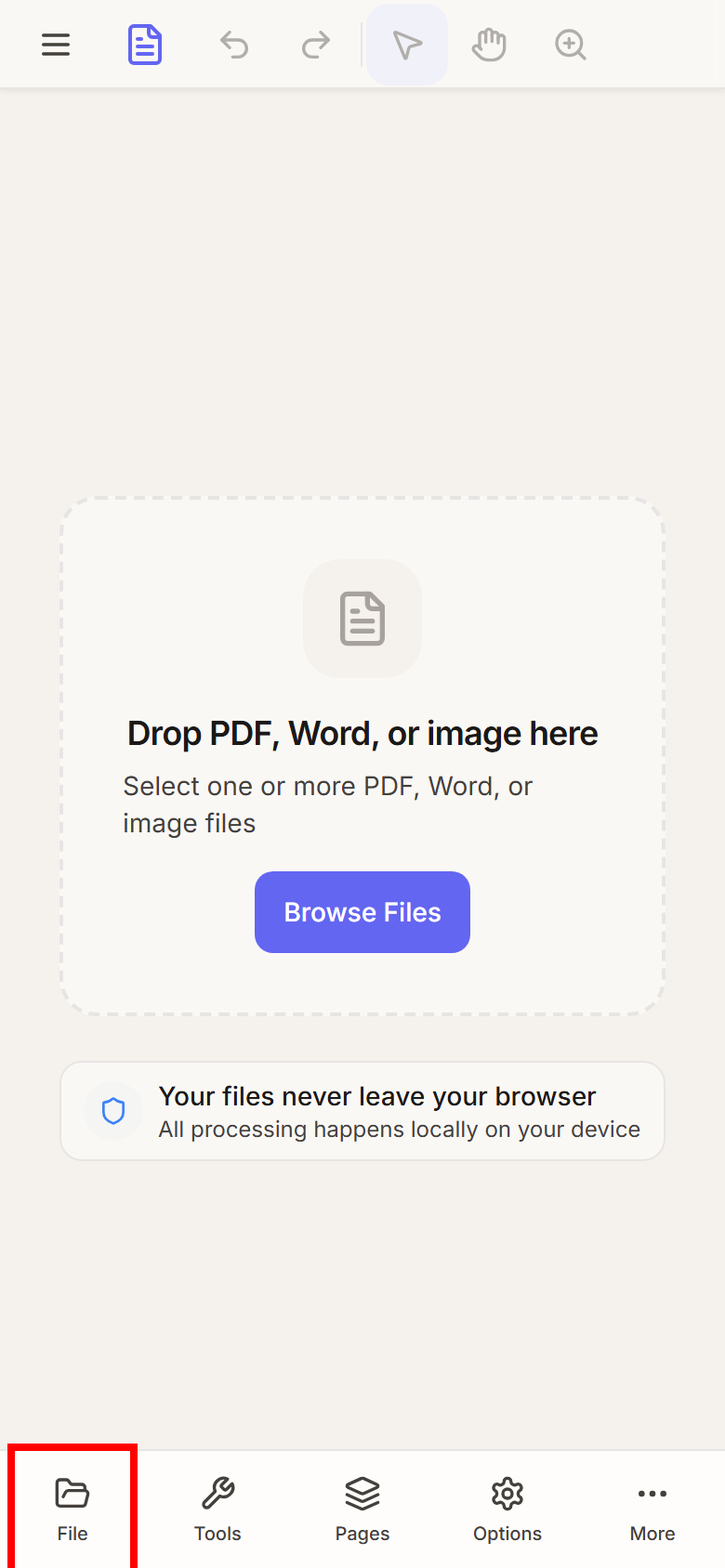
The buttons for the main actions are at the bottom of the screen. Tap File, or tap Browse Files in the middle of the screen, and choose a PDF from your phone.
2.Read the page at full width
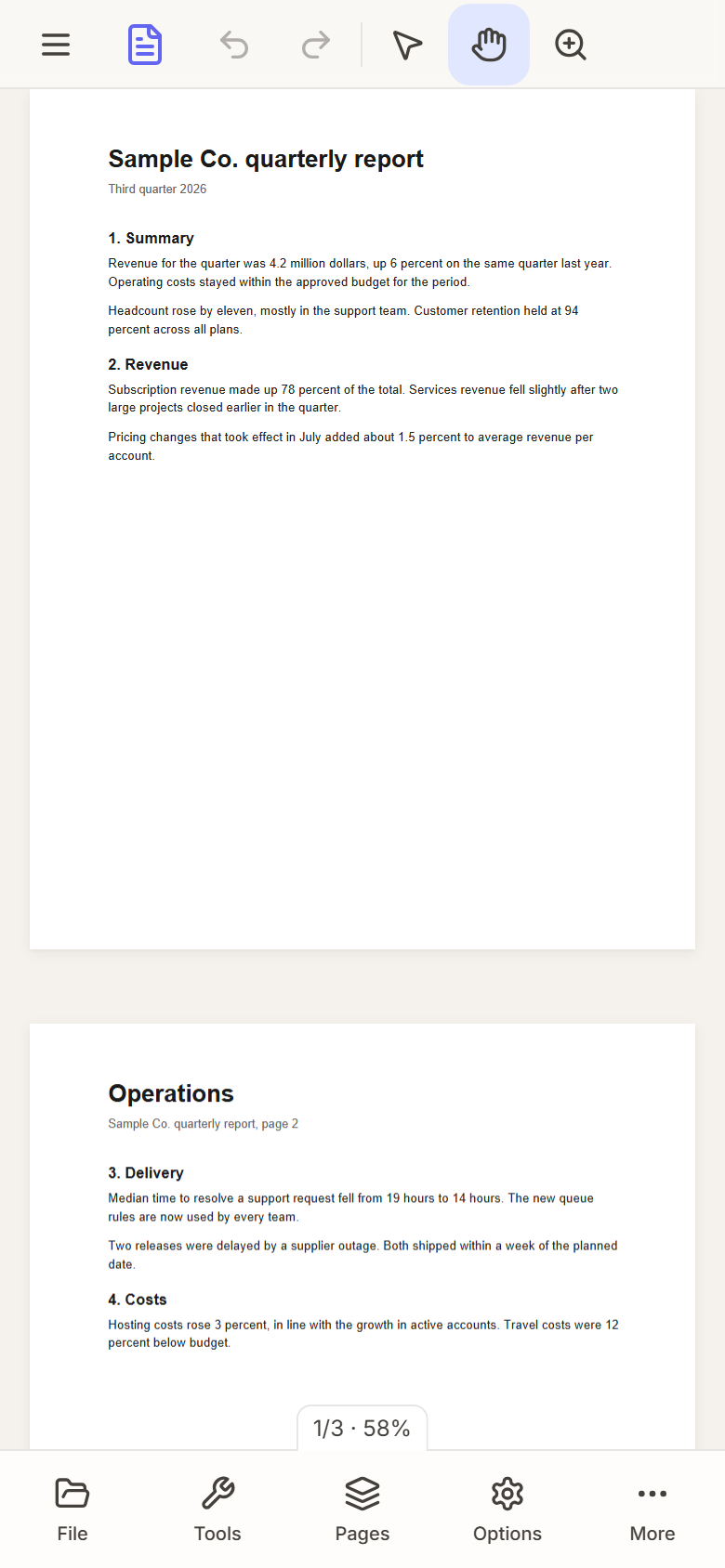
Papr fits the page to the width of the screen when you open it, so the text is as large as the screen allows. Scroll up and down to move through the pages. The page counter at the bottom shows the page you are on and the zoom.
3.Use the tools at the top
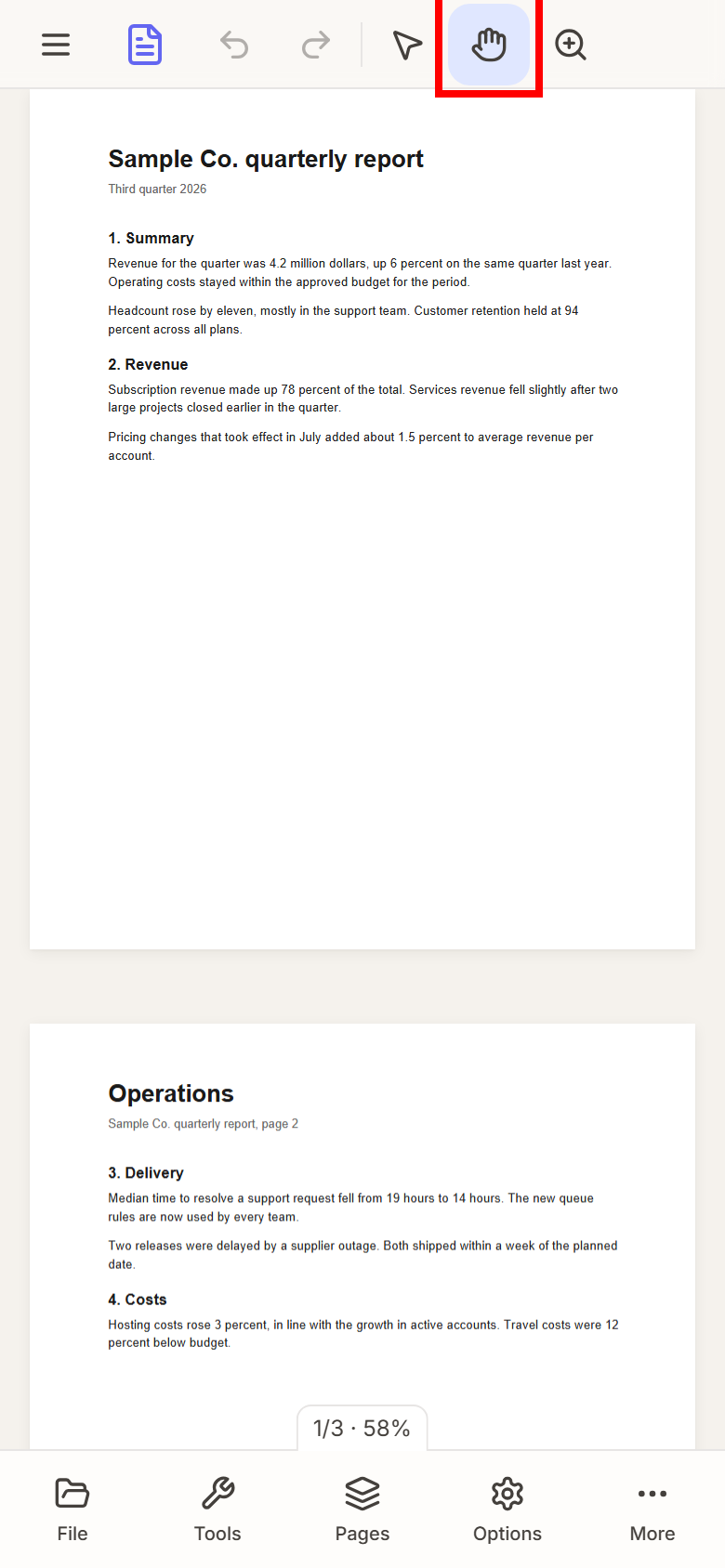
The top bar holds Select, Pan and Zoom, next to Undo and Redo. The tool in use is highlighted. Use Pan to move the page with a finger, Select to pick an item on the page, and Zoom to zoom in and out.
4.Pick a tool from the Tools sheet
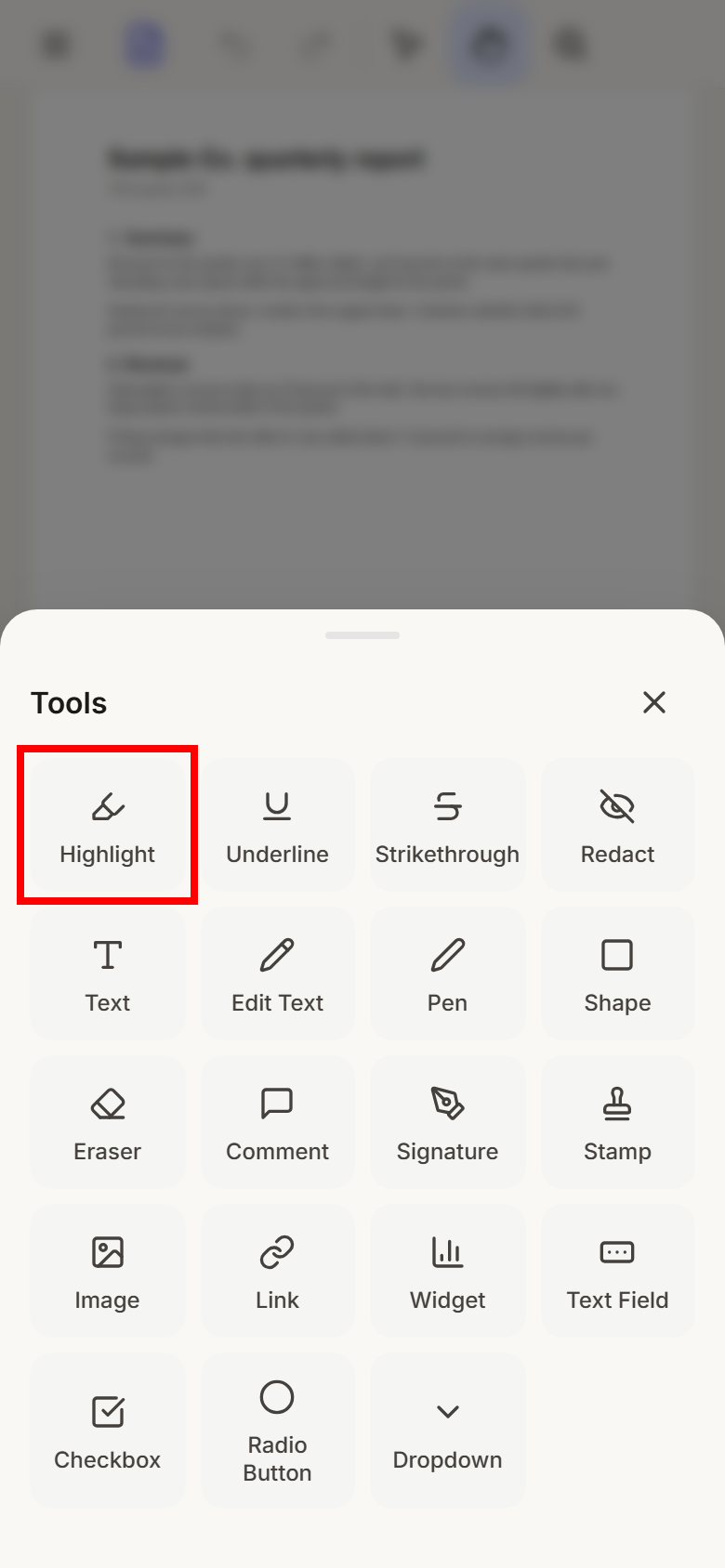
Tap Tools at the bottom to open the list of tools. The list holds the markup tools, such as Highlight, Pen and Comment, and the form fields. Tap a tool to use it on the page.
5.Find the rest in More
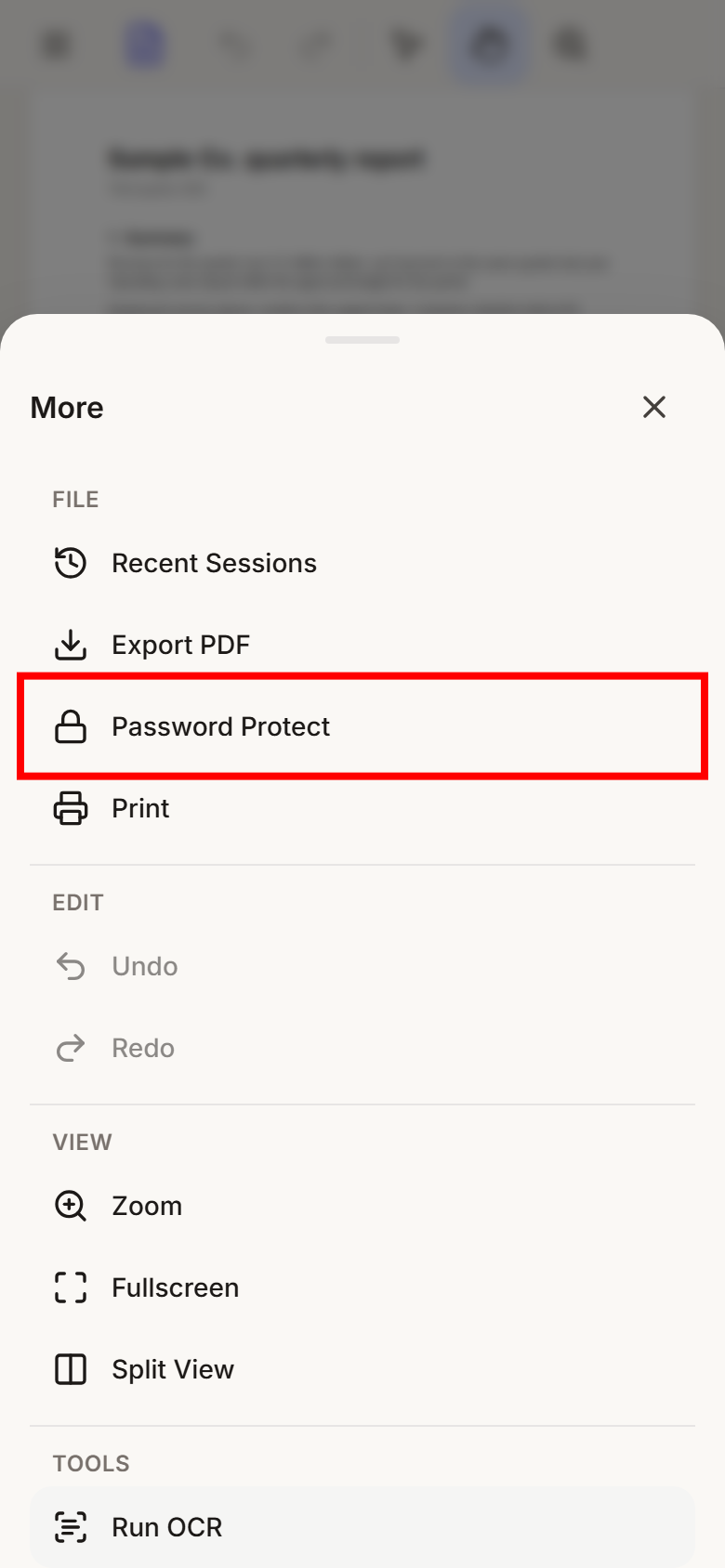
More holds the actions that do not fit on the bottom bar: Recent Sessions, Export PDF, Password Protect and Print, Undo and Redo, Zoom, full screen, Split View and Run OCR. Tap an item to use it.
Papr Docs on a phone
6.Use the one-line toolbar
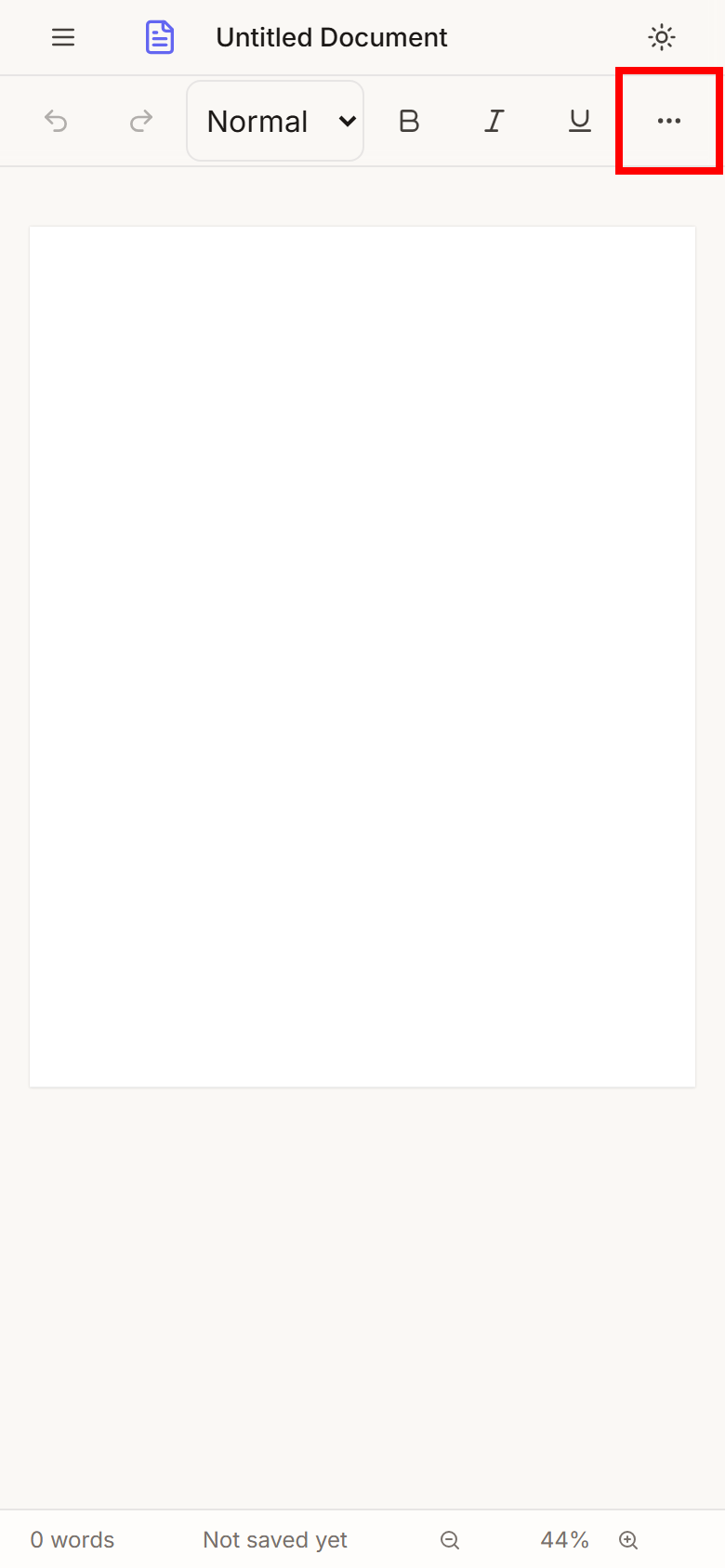
On a phone, the toolbar of Papr Docs is one line: undo and redo, the text style, bold, italic, underline, and More. The menu button at the top left opens the list of your documents.
7.Open More for the rest of the toolbar
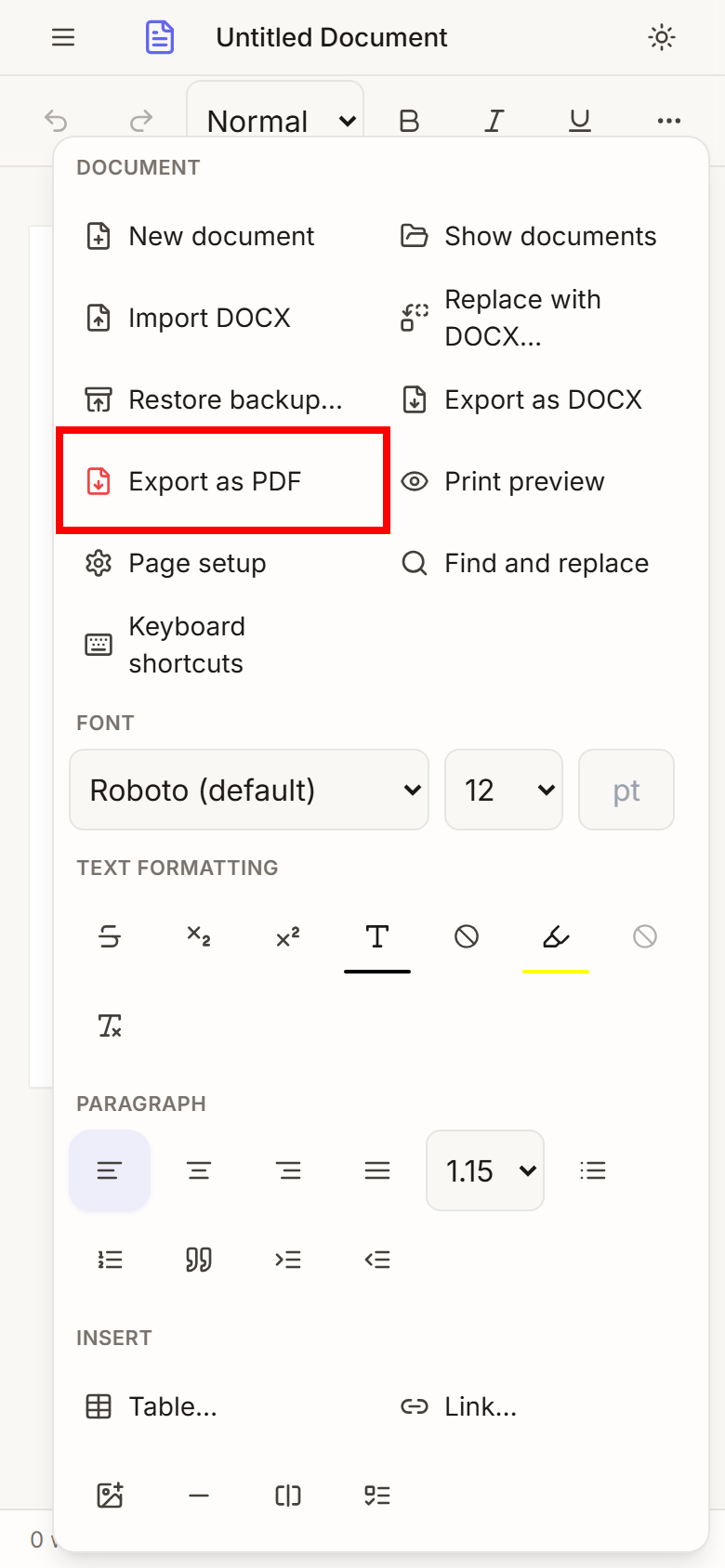
More holds the rest of the commands, grouped under Document, Font, Text formatting, Paragraph and Insert. Under Document are Import DOCX, Export as DOCX, Export as PDF, Print preview, Page setup and Find and replace. Tap an item to use it, and the menu closes.
Papr Sheets on a phone
8.Use the toolbar and More
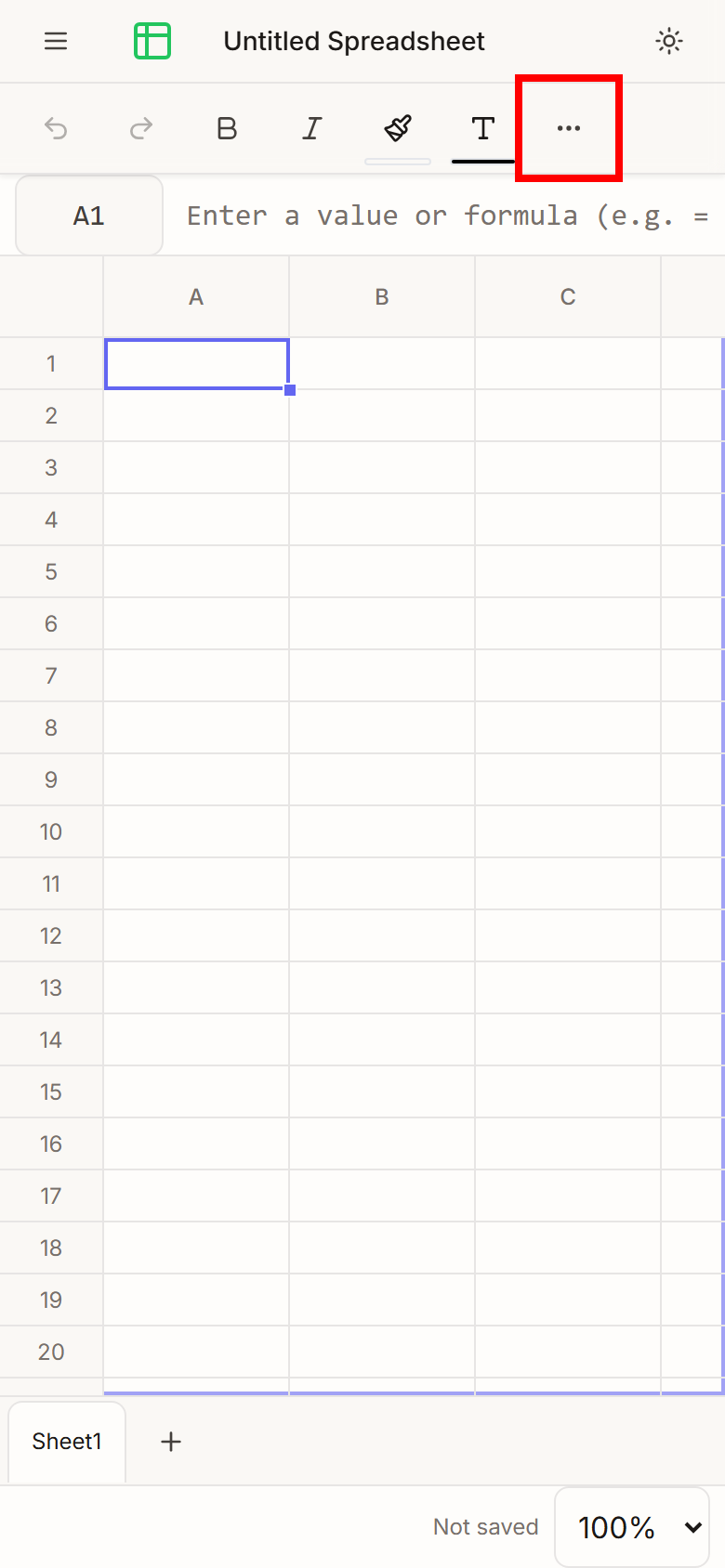
The toolbar of Papr Sheets holds undo and redo, bold, italic, the fill colour, the text colour and More. The formula bar sits under it, and it is the place to edit a long formula. Tap More for Text, Number, Data, Insert, Cells and File.
Try it on your own file
Everything in this guide happens in your phone’s browser. Your file stays on your device.
Open the PDF editor