Recent sessions and password-protected PDFs
Papr keeps the PDFs you work on in this browser, so you can come back to them later. It can also open a password-protected PDF and keep it protected when you save. Here is how both work, and what is stored.
Recent sessions
1.Open the PDF and let it save
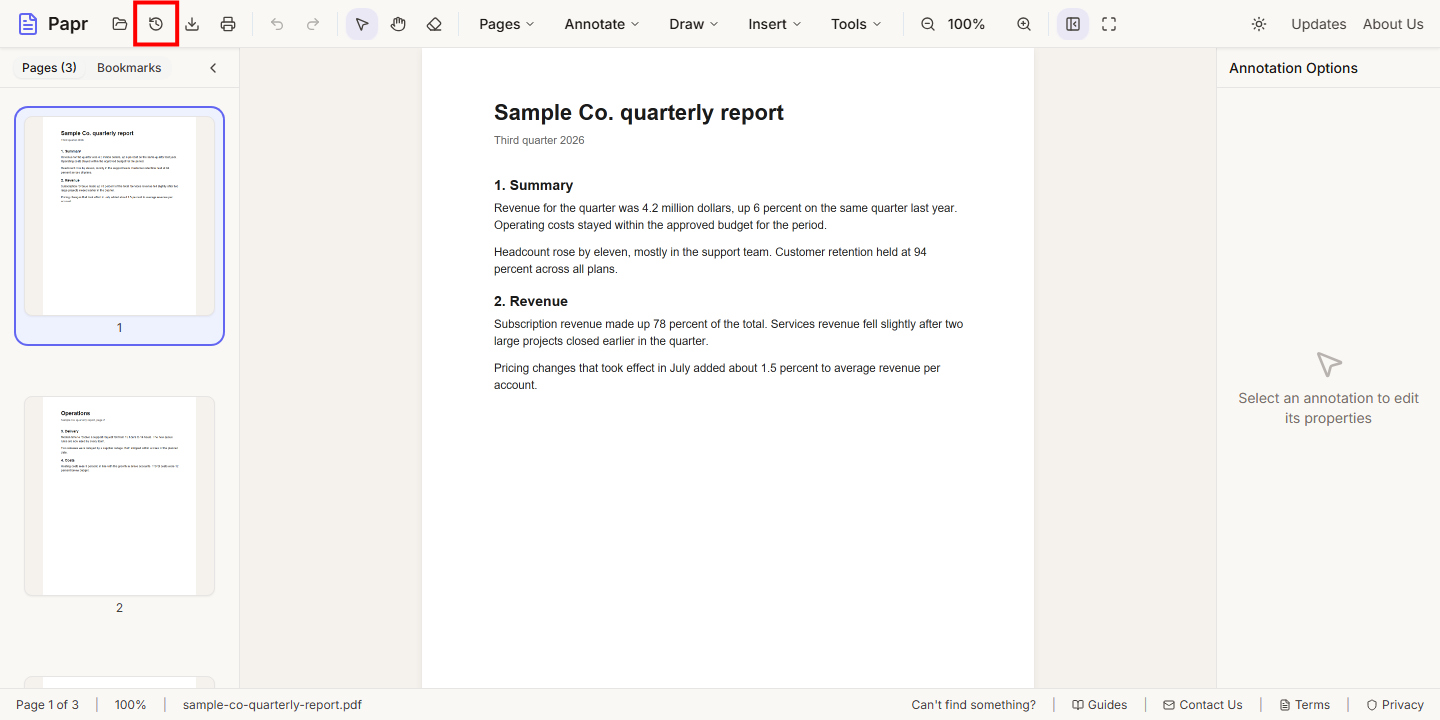
Open a PDF as usual. Papr saves it in this browser about five seconds after your last change, together with your annotations, bookmarks and page order. The file is not uploaded. Click Recent sessions in the toolbar to see the saved PDFs.
2.Resume a session
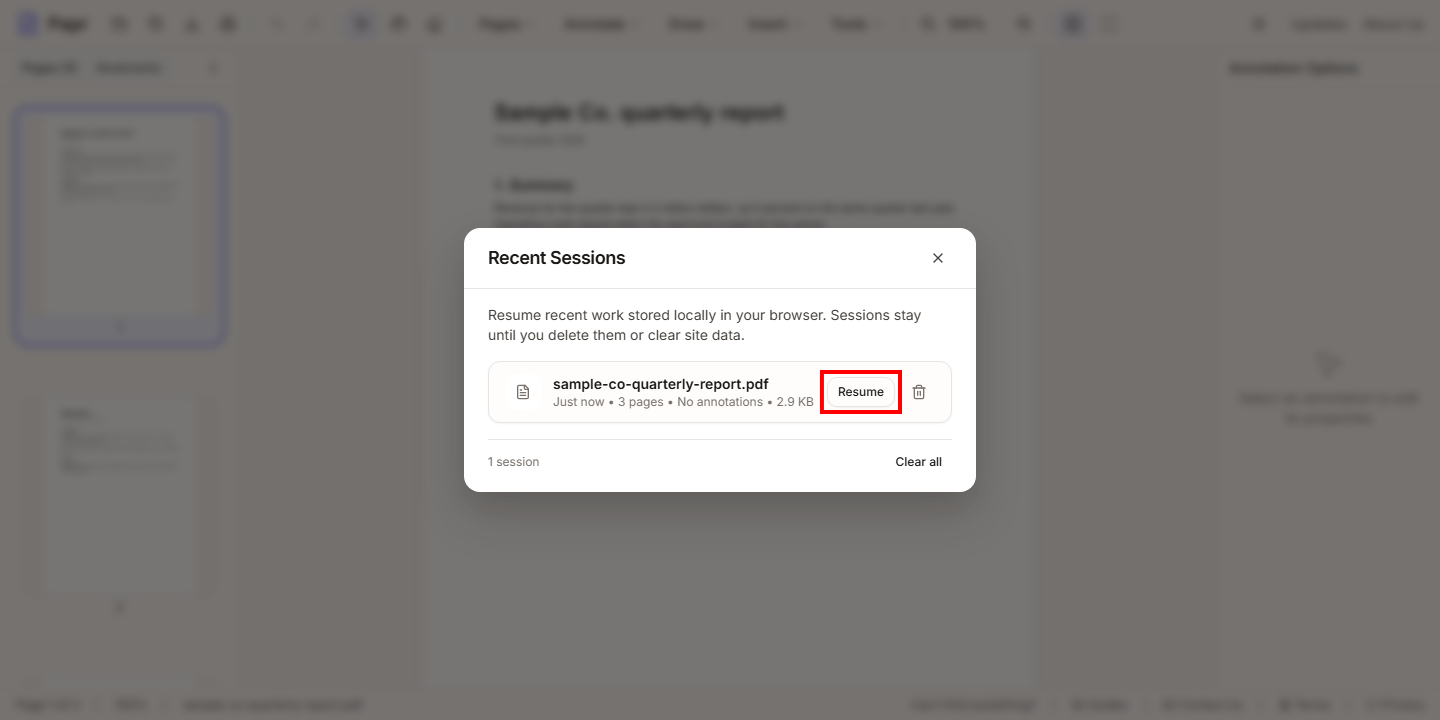
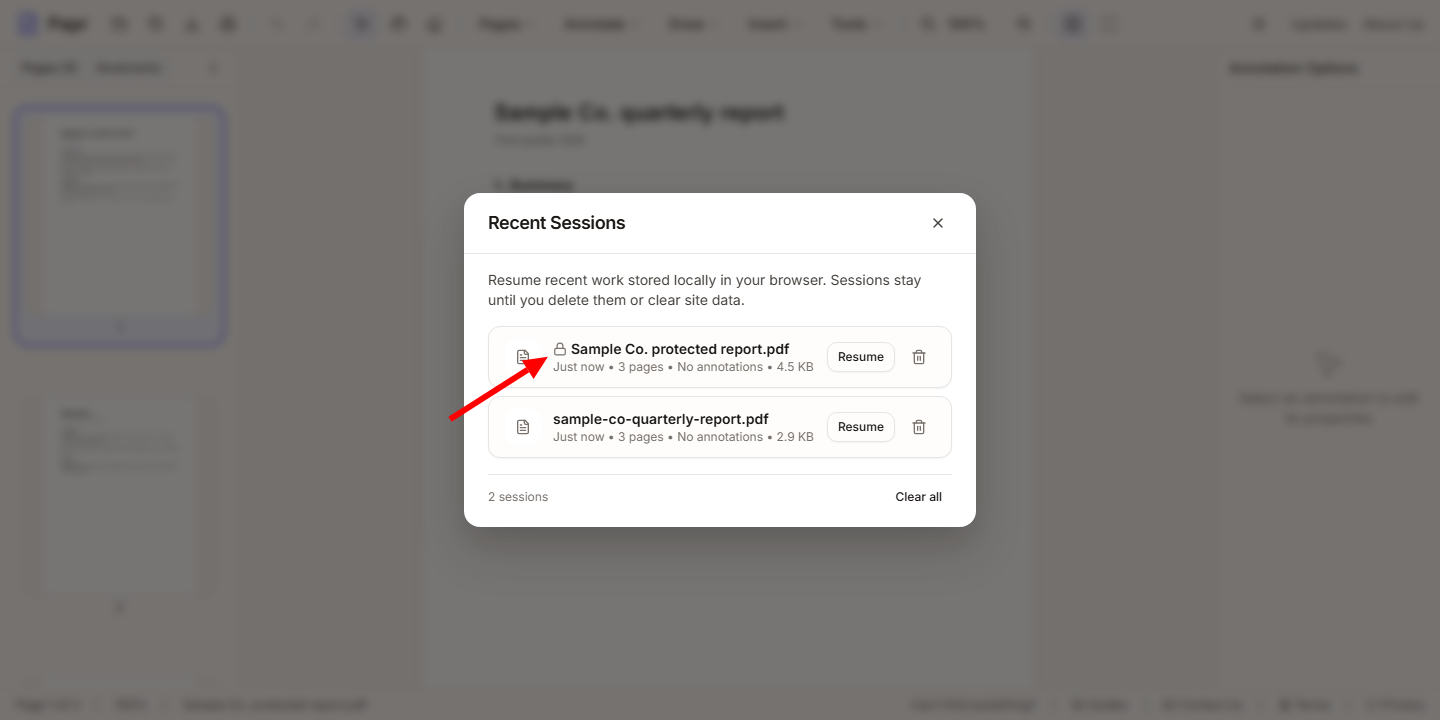
The Recent Sessions list shows each PDF with its page count, its number of annotations and its size. Click Resume to open it again where you left it. To remove one, click the bin icon beside it. Clear all removes every session in the list.
Password-protected PDFs
3.Unlock the PDF
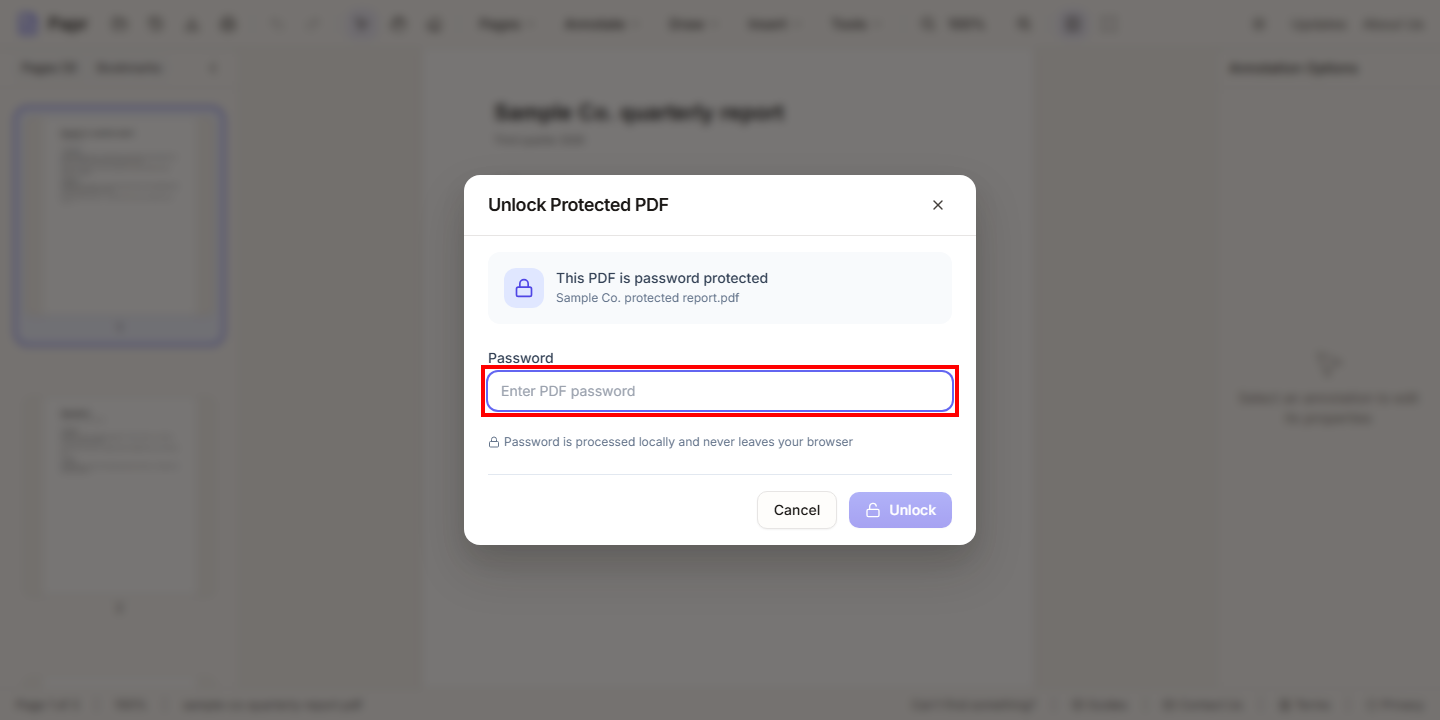
Open a protected PDF with Open file. Papr shows the Unlock Protected PDF dialog. Type the password in the Password field and press Enter, or click Unlock. Papr checks the password in your browser. If it is wrong, the dialog shows “Incorrect password” and you can try again. Cancel leaves the PDF unopened.
4.Export it protected again
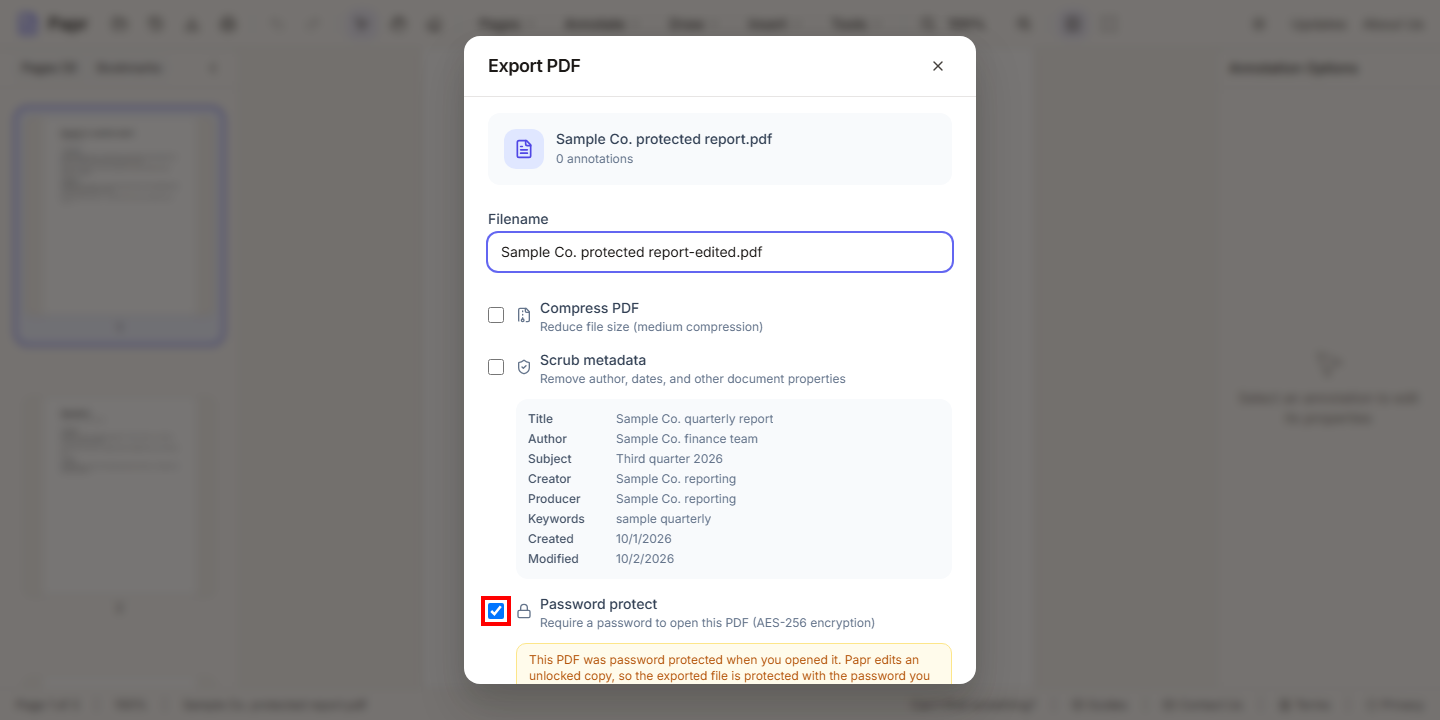
After you unlock a PDF, Papr remembers its password. Open the Export dialog: Password protect is already ticked, and a note explains that the export is protected. Type a password for the new file, or untick the box to export without one. Papr uses AES-256 encryption for the protected file.
5.Find the protected session in the list
A session of a protected PDF shows a lock beside its name. When you resume it, Papr asks for the password again before it opens the file.
What is stored, and where
- The sessions are kept in the storage of this browser, on this device. Nothing is sent to Papr’s servers. Another browser, or another device, has its own list.
- A protected PDF is stored encrypted, with a key made from its password. Papr does not store the password itself.
- The annotations, bookmarks, form field names and recognised text of a session are stored without that encryption, as they are for any session. Someone with access to this browser’s developer tools could read them.
- Each PDF session can be up to 50 MB. Papr warns you when the browser’s storage is nearly full. When it is full, a save fails and reports the problem, and the sessions you already have are kept.
Try it on your own file
Everything in this guide happens in your browser tab. Your file stays on your device.
Open the PDF editor